November 2026
17 October – 17 November 2026 · Latest
A big month. Bots arrived: AI teammates that live in their own sandbox and work alongside you. Agents can now follow a workflow you can watch step by step. Home became a real home, pull requests and issues moved in, and Terminay now runs on Windows and fits comfortably on your phone.
New in November
Meet Bots: AI teammates with their own desktop
A bot is a coding agent with its own sandboxed container, desktop, files and memory. Chat with it like a colleague, give it triggers, and let it get on with the job while you work on something else.
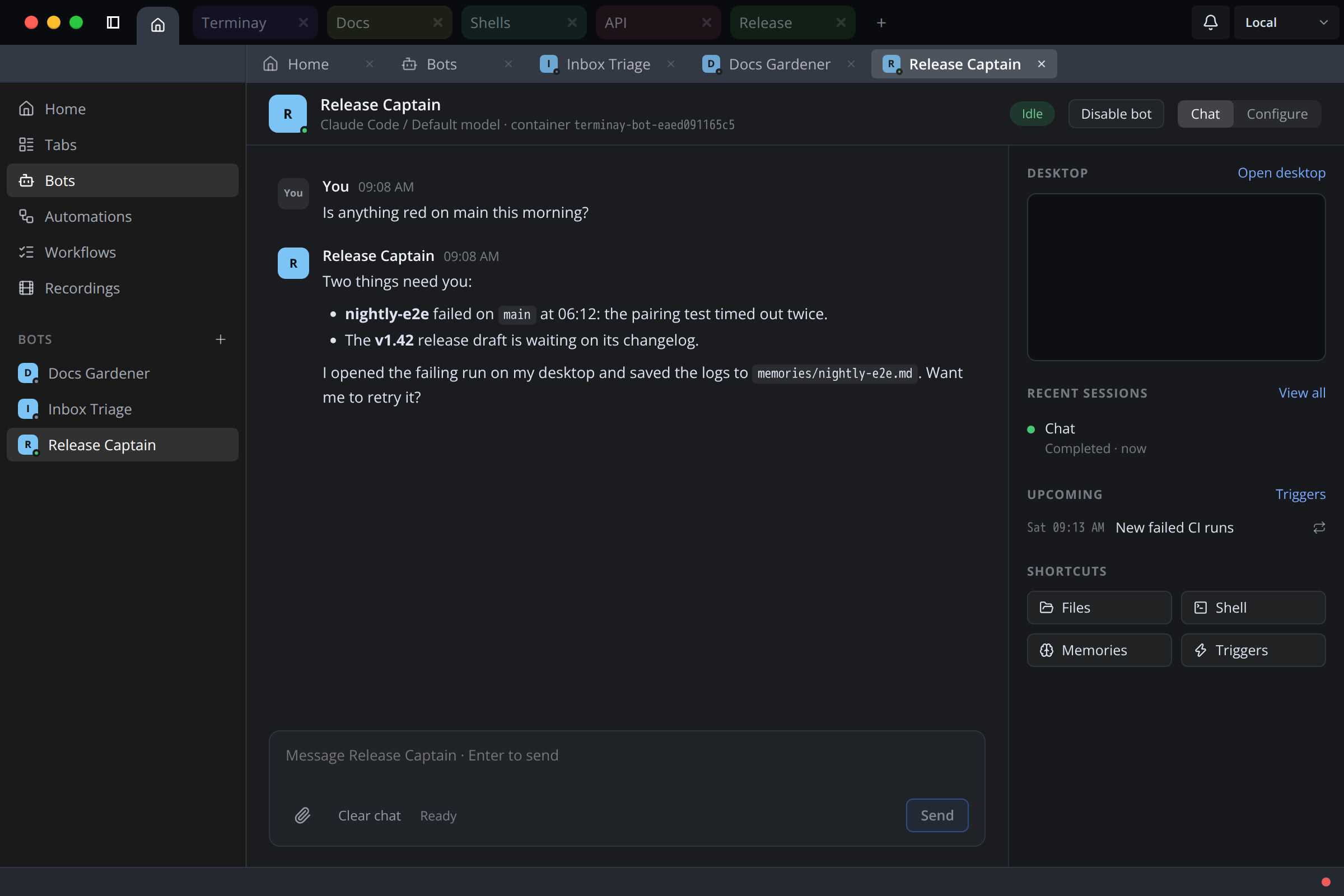
- Chat with a bot from Home. Attach images or any file, quote a message back into the reply box, and reply in threads to keep side conversations tidy.
- Triggers run a bot on a schedule or when something happens, such as a new failed CI run. A bot can also post timed messages to you.
- Open its desktop to watch it work, or take control. The clipboard is shared both ways, and you can paste straight into it.
- Bots tell you when they post, with unread counts on Home, the Bots item and each bot. They retry temporary failures and can look into their own failures.
- Sign in with your Claude subscription in a few clicks, and opt a bot in to full Terminay control when you want it to drive the app.
Workflows: watch an agent work through a plan
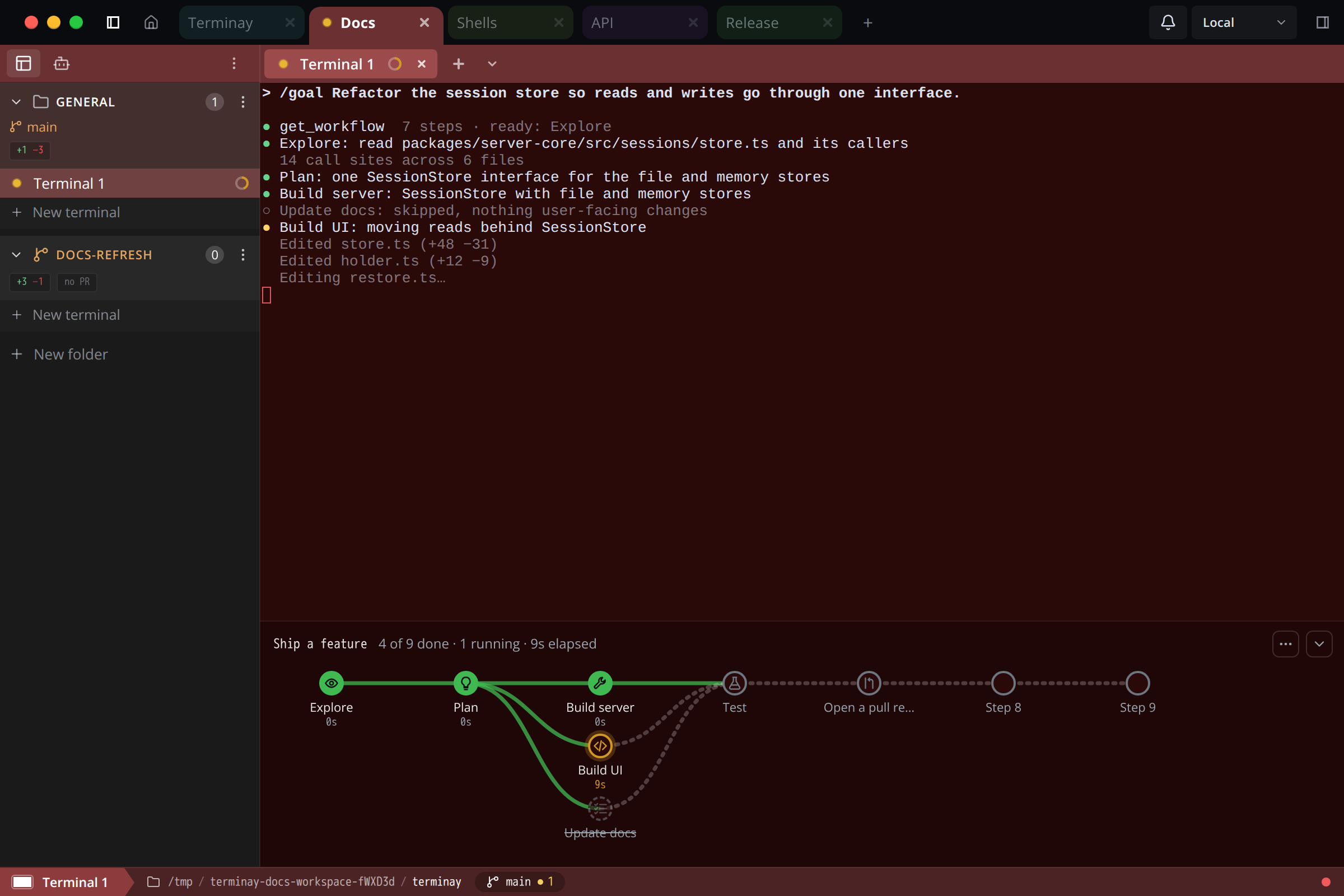
Give an agent a goal and it follows a workflow you can see: explore, plan, build, test, open a pull request. Steps can depend on each other and run side by side.
- A live metro map under the terminal shows every step, what is running and what is waiting on what.
- Progress dials on tabs and sidebar rows show how far along each workflow is at a glance.
- Skip or restore steps, resize the panel, choose how notes are shown, and edit a plan as an outline.
- The new Workflows section on Home shows every workflow in columns, and highlights the ones that need you.
A Home you can make your own
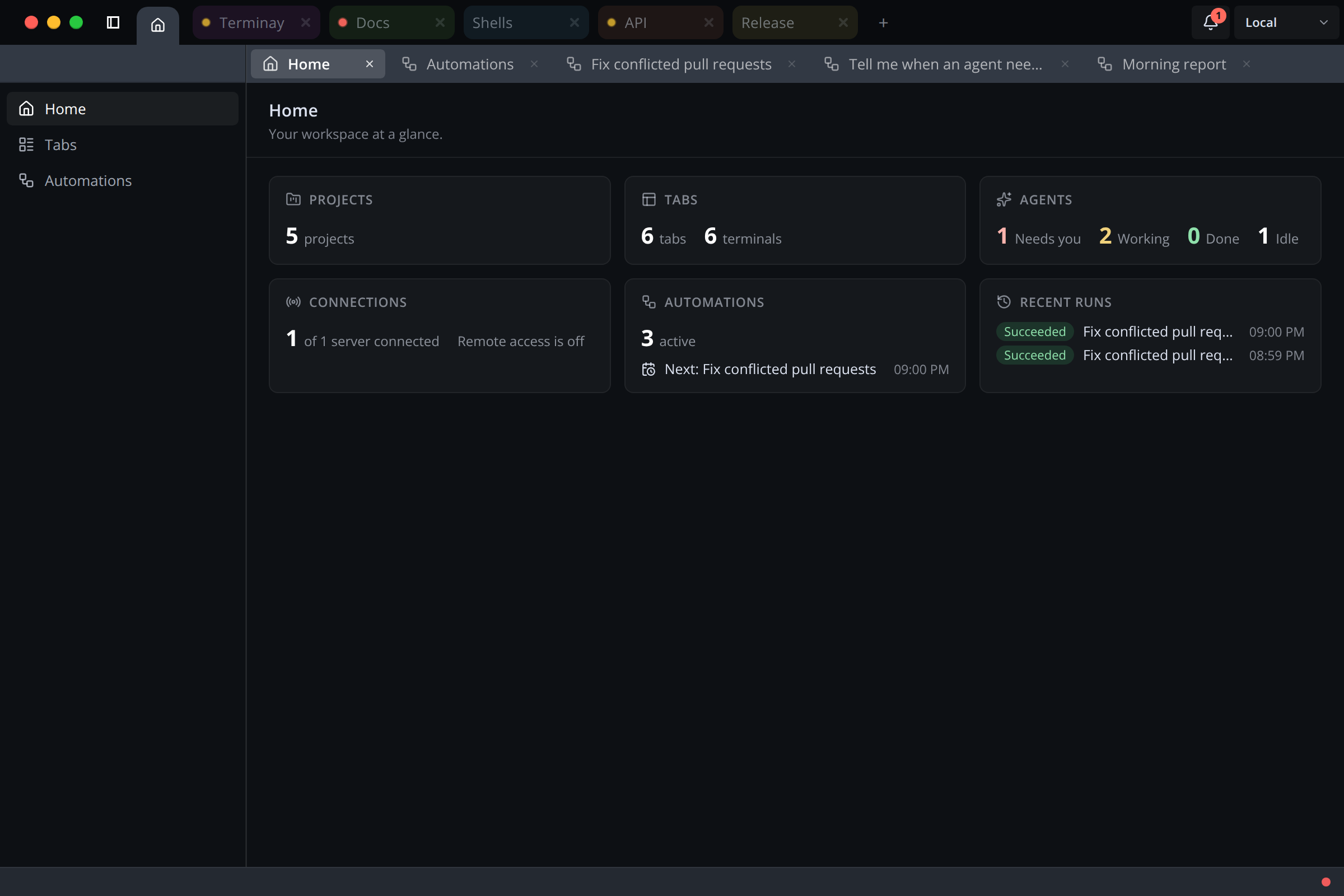
Home now opens on an overview of your whole workspace, and you choose what goes on it.
- Widgets for quick actions, things that need you, agents, workflows, bots and run history. Customise them to suit you.
- Workflows, Recordings, Pull Requests and Issues each have their own section in Home’s sidebar.
- Everything you open from Home opens as a tab of its own, and Home remembers where you were.
Pull requests and issues, right where you work
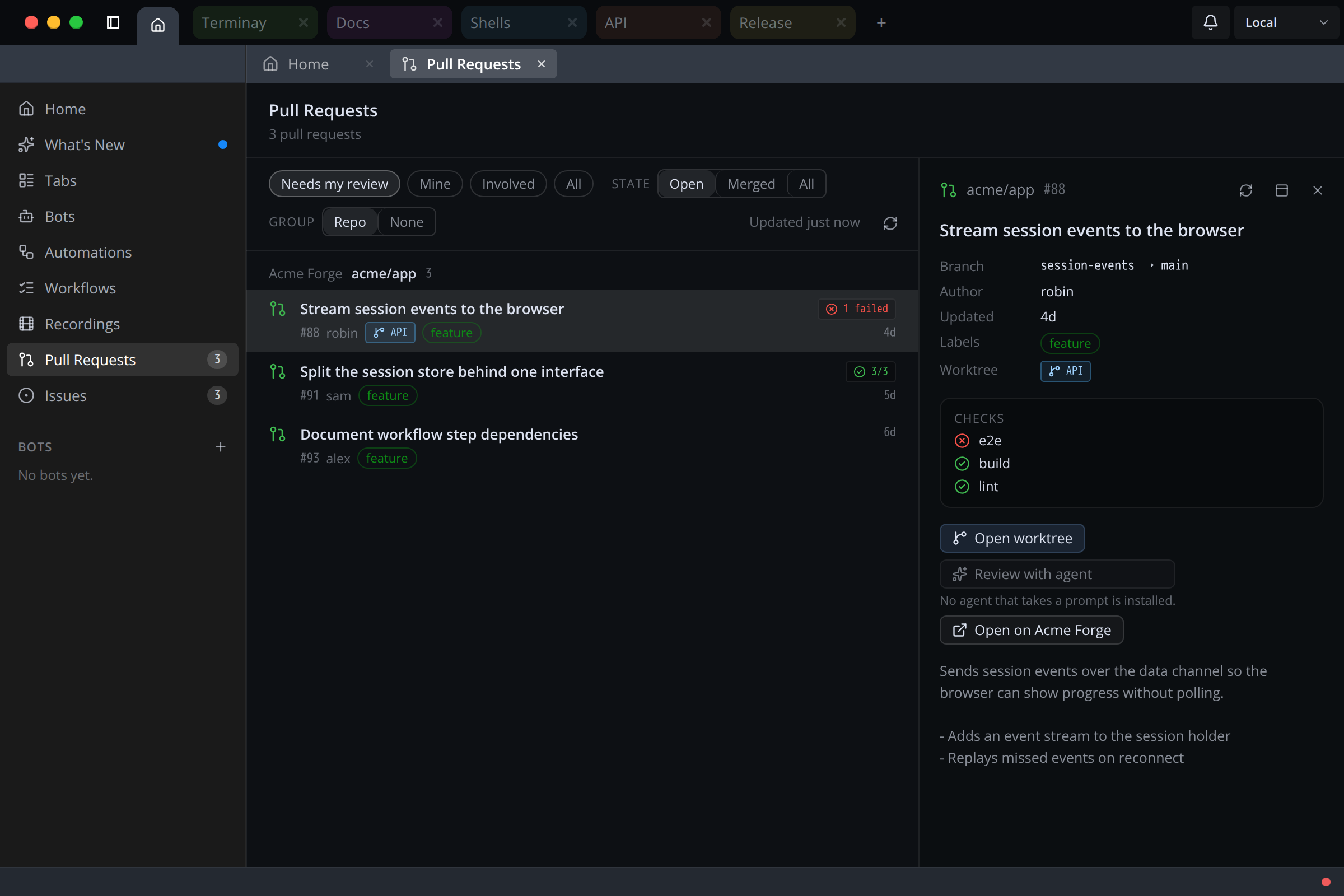
Your pull requests and issues from GitHub and Gitea now live in Terminay.
- Browse them on Home, or in a project’s Git tab, with a preview you can resize.
- Open any pull request or issue in a tab of its own.
- Filter by account if you use more than one.
- Dashboard cards show a pull request’s checks, and merged pull requests show as merged, in purple.
Terminay on your phone
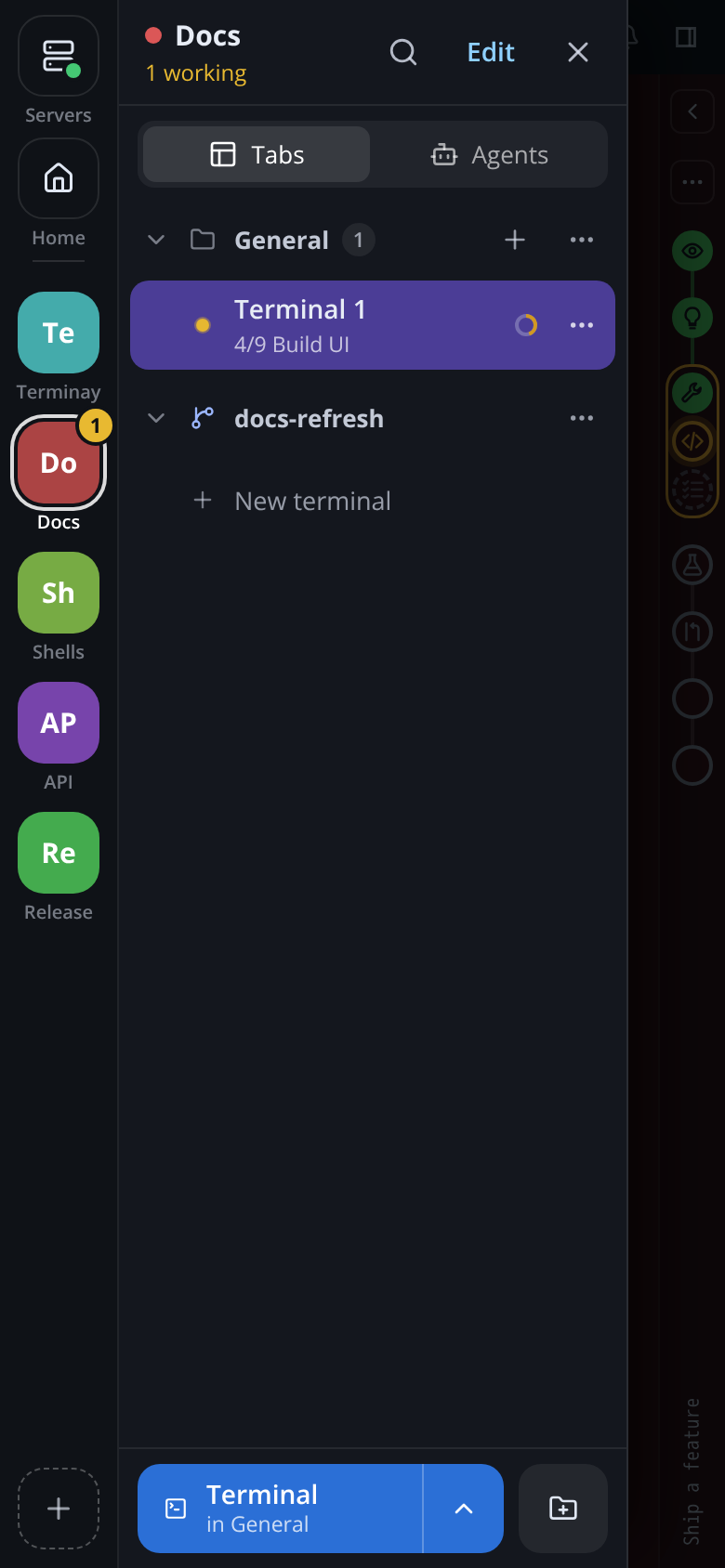
The phone layout was rebuilt around a rail of your projects and a drawer that is easy to reach with your thumb.
- Home, Servers and every project sit in a rail down the side. Their tabs and agents are one tap away.
- Home’s sections each get a page sized for a phone, and the header has one control for each place you can go.
- Taps now work in terminal programs, and a connection that dropped while your phone slept comes back quickly.
Terminay for Windows
Terminay now runs natively on Windows, with a title-bar menu, a Ctrl+Tab switcher and framed secondary windows.
- Install it like any other Windows app. It updates itself.
- Choose a stable, nightly or canary release track, and install the latest build on that track even when it is older than yours.
Your own servers, easier to run
Running Terminay Server on another machine got much smoother.
- Expose a standalone server and pair with it from any client.
- Check a server for updates on request, and follow an upgrade step by step through its restart.
- Live CPU, memory, network and disk stats for the active server sit in the status bar.
- Copy projects, automations and settings between servers, or through a bundle file.
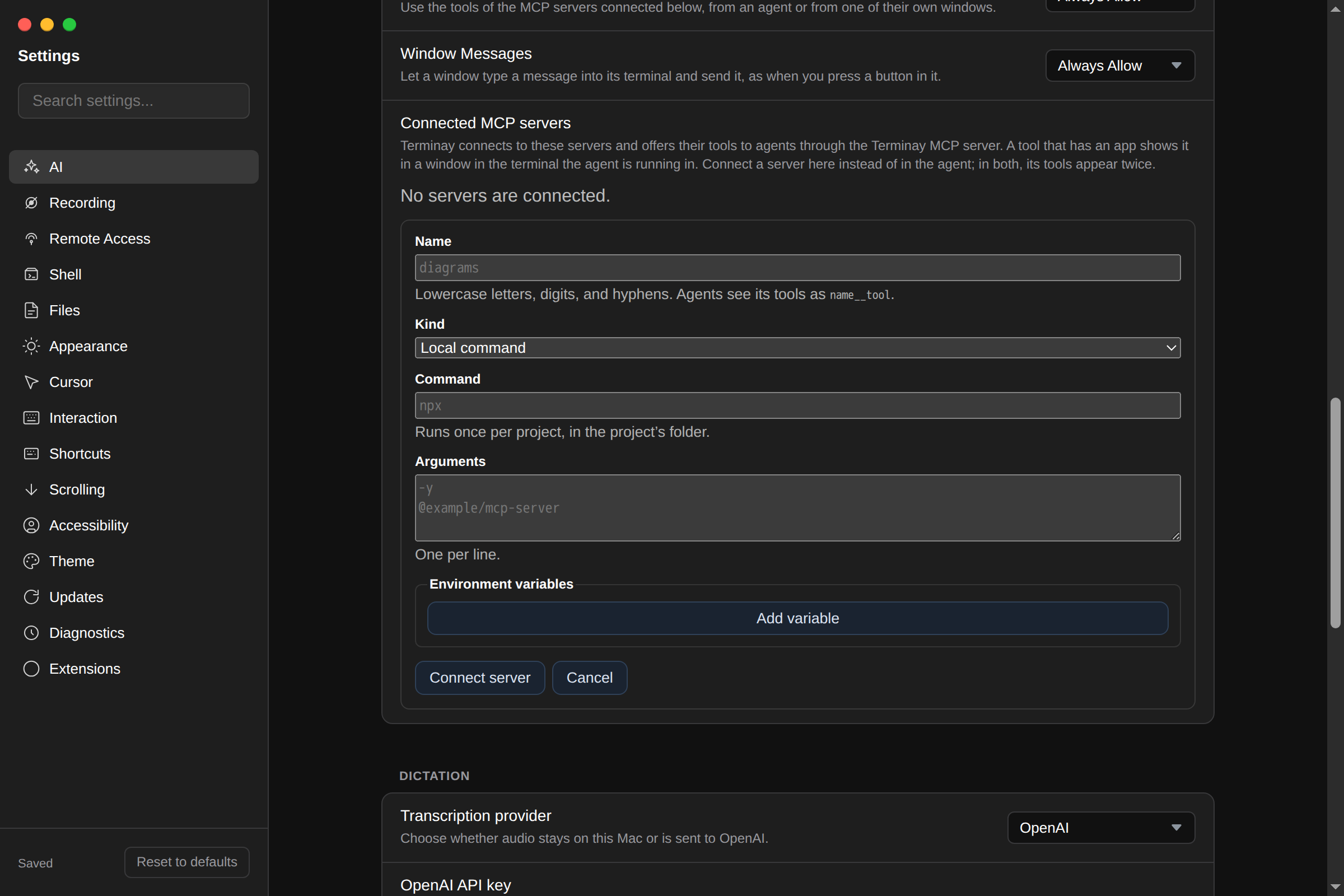
- Every server now hosts Terminay MCP, so agents can drive the app wherever it runs.
Improvements
Terminals
- Programs can copy to your clipboard with OSC 52.
- Pasting copied files into a remote terminal uploads them to that server.
- Terminal command defaults and shell integration for the agents you use.
- On macOS, opening a folder with Terminay starts a local terminal there.
- A launched terminal takes its name from the program’s title.
- Folder rows in the sidebar take their tab’s colour.
Projects and folders
- Open a folder from one path field that completes like a shell.
- The start screen keeps every recent project, shows five, and has search that is always there.
- Group terminals into folders in the pane strip. New terminal can start an installed agent for you.
- Deleting a worktree asks one clear question.
Settings and app
- One Settings window, organised by where each setting is stored, now with Remote Access, Macros and Extensions.
- A Terminay menu, and Recordings moved into Home.
- Saved servers get a proper detail page, with Forget in a danger zone.
- The active-tab indicator is on by default.
- Pixel explains a missing agent and links to its official install guide.
Fixes
Bots
- Bot updates install themselves, and recreating a bot works with its Files tab open.
- Downloads from a bot’s Files save properly in Desktop.
- The chat box grows with your text.
- A failed chat start can be retried or dismissed.
- A bot recovers from engine outages, slow clean-ups and leftover storage without needing a restart.
Terminals and workspace
- Raw-mode programs render correctly: Convert LF to CRLF is now off by default.
- Mouse input keeps working after a terminal is restored, and keys typed during a reconnect reach the shell.
- A closed terminal stays closed, and a running one always has a panel.
- The last terminal row no longer hides behind the status bar.
- Overlays such as the recovery banner keep clear of the workflow panel.
- Idle background shells no longer flash busy, then done, on resize.
Servers and upgrades
- Upgrade cards show real version numbers, one clear title, and never stop at Running.
- Upgrade results appear in Notifications instead of a popup.
- Projects keep file access after a standalone server restarts.
- MCP registrations survive server upgrades.
- App windows come back with their terminal after a restart.
Settings and layout
- Settings fits a small display and closes with ⌘W, with no gap above it in macOS full screen.
- Dashboard list chips stay on their row, and the Workflows board scrolls freely.