Bots
A bot is a named agent that lives on your Terminay Server in a container of its own. Chat with it, give it standing instructions and memories, and let triggers wake it on a schedule, when a file changes, or when a command or URL returns something new.
What A Bot Is
An agent in a terminal works on a project while you watch. A bot works on its own. Each one has:
- a name, an avatar and colour, a short description, and instructions given to the agent at the start of every session;
- one agent and one model, such as Claude Code or Codex;
- its own container, home volume, and network, with a desktop and a Chromium browser it can drive;
- memories, triggers, and a history of every session it has run.
Bots belong to the server, not to a project. Closing or removing a project never changes a bot, its triggers keep firing with no project open, and every device attached to the server sees the same bots. They survive server restarts.
Requirements
Bots run on a container engine on the server's machine: Docker (Docker Desktop, OrbStack, or Docker on Linux, running rootful) or Podman (rootful or rootless, including the Podman machine on macOS). Remote engines over SSH or TCP, rootless Docker, and Windows servers are not supported.
When no engine is available, the Bots section says why (not installed, not running, permission denied, and so on), how to fix it, and offers Check again. You can still create and edit bots meanwhile; nothing else in Terminay is affected. With both Docker and Podman installed, pick one in the Bots section. Terminay remembers the engine it chose and asks before it uses a different one.
Every bot runs from one image, terminay-bot:local, which Terminay builds on your machine from a Dockerfile it ships. It never pulls a prebuilt bot image. The image holds the desktop, a browser, common developer tools, the docker command line, and the pinned CLI of every bot agent your extensions contribute. A build shows a compact notice in the Bots section; open it to follow each step, and a failed build keeps the previous image and names the step that failed.
Creating A Bot
Open Home, choose Bots, then New bot. Give it a name, choose an agent and a colour, and choose Create. The bot's tab opens on its Profile.
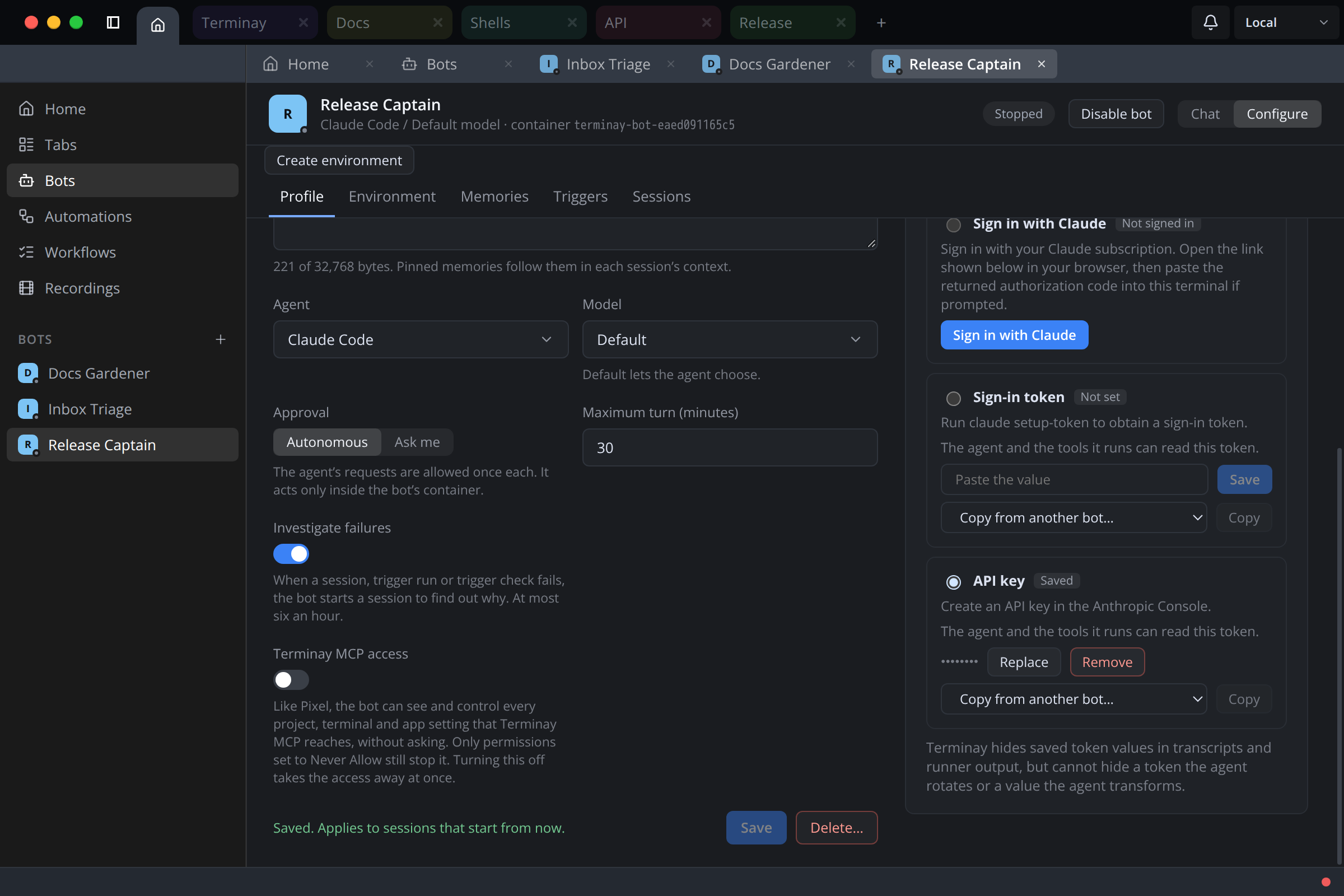
- Agent and model. Agents come from installed extensions; the bundled agents extension contributes Claude Code and Codex. The picker groups them by extension and says whether each is ready, not signed in, or missing from the bot image. Default leaves the model to the agent.
- Instructions. Up to 32 KiB of standing instructions, given to the agent at the start of every session.
- Approval mode. Autonomous answers each permission request with the most permissive single-use option, because the agent only acts inside the bot's container. Ask me holds each request until you answer it. Codex is always Autonomous, and the Profile says so.
- Sign-in. A new bot is Not signed in. Paste an API key or sign-in token for that bot alone, or use the agent's own browser sign-in, such as Sign in with Claude or Sign in with ChatGPT, which runs inside the bot's container.
Creating a bot creates only its record. The container, home volume, and network are made the first time the bot starts. Profile changes apply to sessions that start after you save.
Sign-In And Secrets
A bot signs in only with its own credential. Terminay never reads, mounts, or copies your own Claude or Codex login.
- Tokens and API keys are kept in the server vault for that bot, and passed only into the environment of the agent processes Terminay starts for it. They never appear in process arguments, the container's configuration, the image, or the home volume.
- Browser sign-in runs the agent's own login command in a terminal inside the bot's container. Copy its URL into your browser, approve the code, and paste back any code it asks for. The login stays in the bot's home volume, and the agent keeps it refreshed. Sign out runs the agent's logout command.
- Redaction. Any token Terminay injected is replaced with
[redacted]in transcripts, runner output, and logs, even when it is split across output chunks. Redaction cannot catch a login saved by browser sign-in, a rotated token, or a credential the agent transforms.
Chatting With A Bot
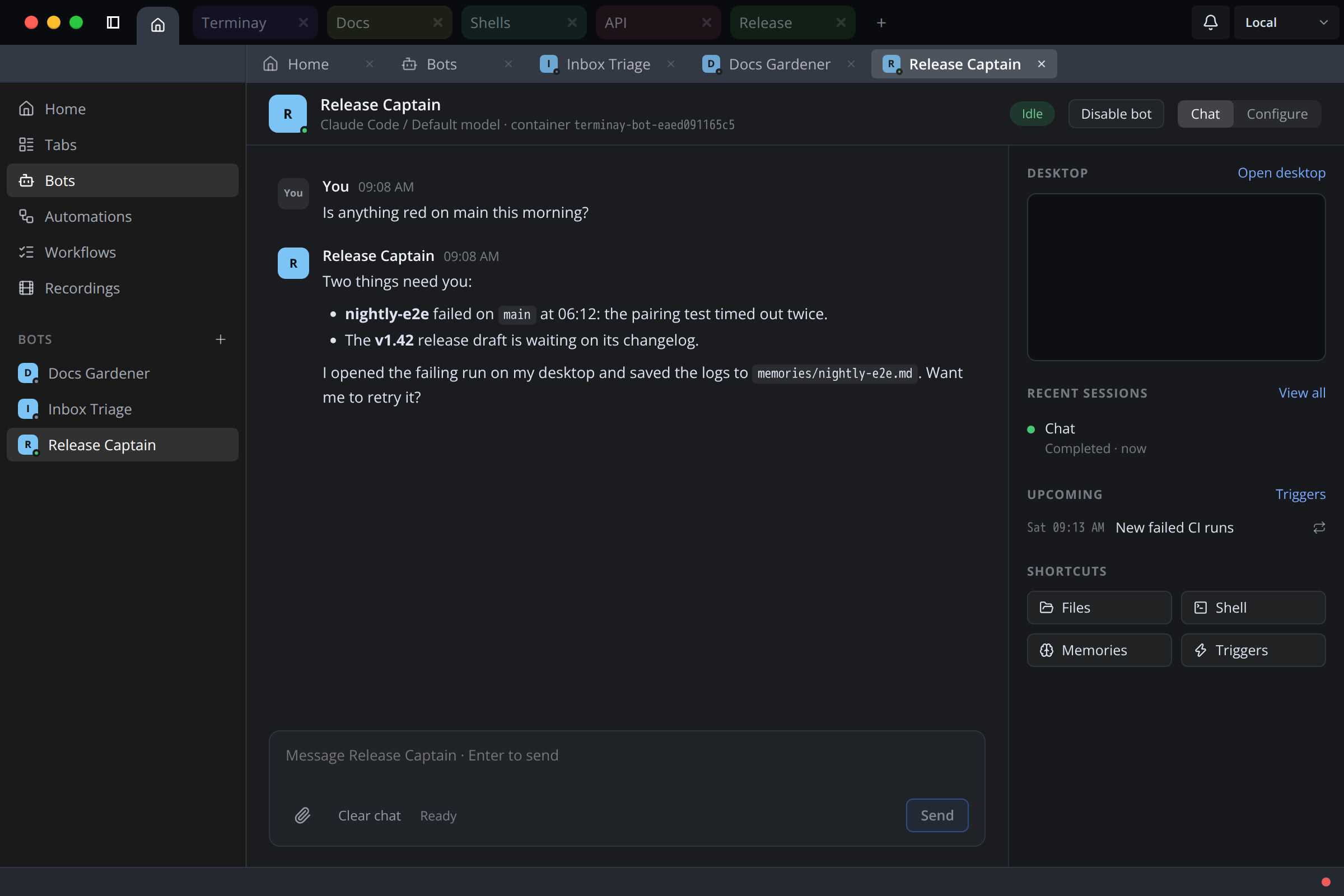
A bot tab has two modes, Chat and Configure. Chat holds the bot's one shared conversation. Beside it, the context rail shows a live thumbnail of the bot's desktop, its recent sessions, its next three trigger firings, and shortcuts to Files, Shell, and Desktop.
Every message you send starts a fresh agent session with the recent conversation as context, so you can correct a bot while it is still working: the new session sees what the old one is doing and can take over. A bot runs up to four sessions at once, with one more slot kept free for your messages, and queues up to 20 more. Only what the bot posts to the chat appears as a reply; its thinking, tool calls, and plans stay in that session's details.
The bot's container starts on demand when you send a message or a trigger fires, and stops after it has been idle for 30 minutes by default. Stop cancels the running turn and ends every command it started. A turn that runs past its maximum duration, 30 minutes by default, is stopped and marked timed out.
Triggers
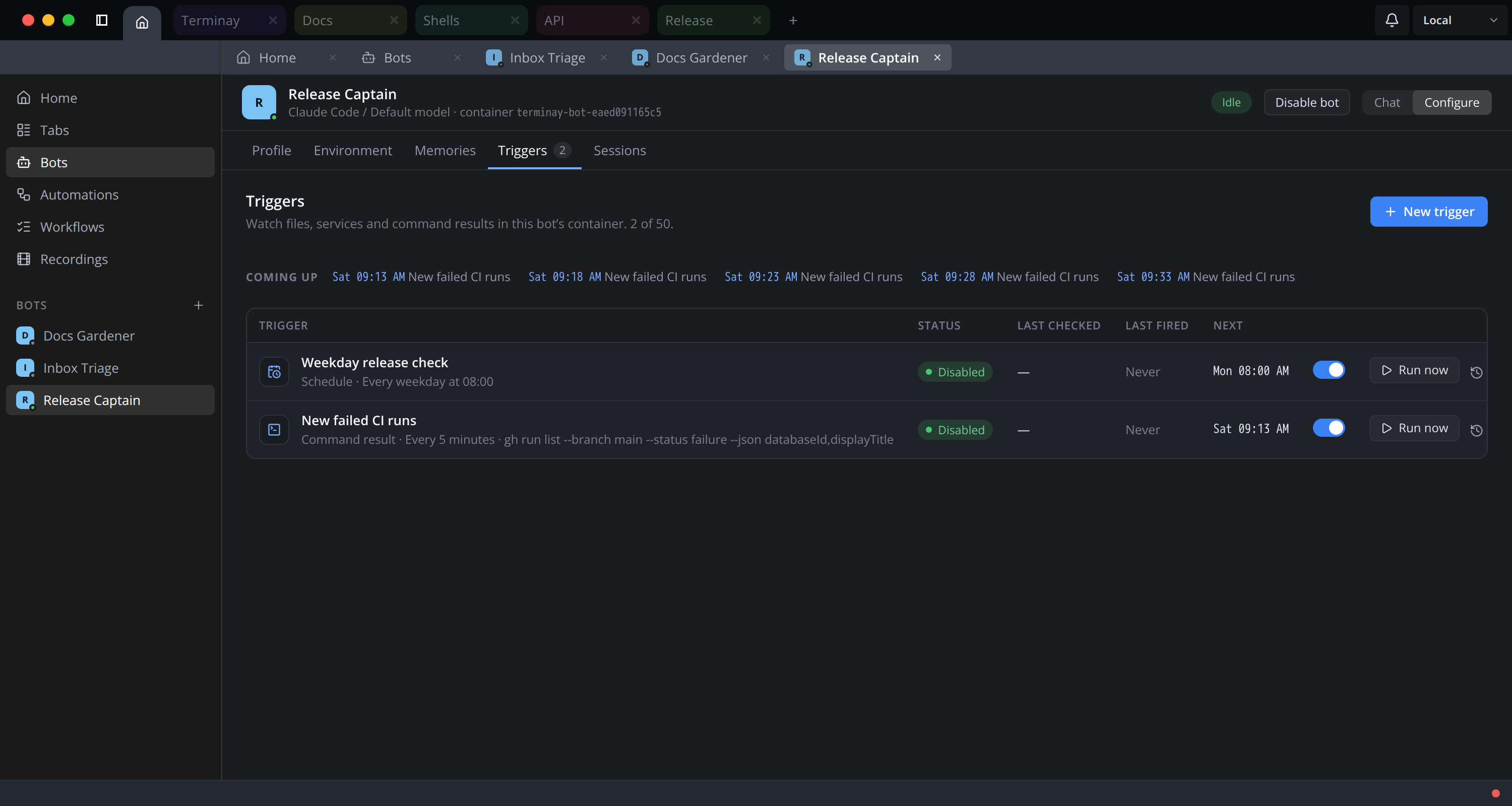
A trigger wakes the bot with a prompt. Open Configure → Triggers and choose a source. A bot with no triggers offers a quick start for each one.
| Group | Source | Fires |
|---|---|---|
| Files | File or folder changes | When files under a path in the bot's home are created, changed, or deleted, with include and exclude filters and a debounce. |
| Network | SSE event | When a server-sent event stream emits, optionally only for one event name. |
| HTTP response | When a polled URL's response changes, matches, or has new JSON items. | |
| Commands | Command result | When a periodic shell command's output changes, matches text, returns an exit code, or lists new JSON items. |
| Time | Schedule | On a five-field cron expression, in the server's time zone. |
| Interval | Every N minutes or hours, at least five minutes apart. | |
| Once | At a date and time, then disables itself. |
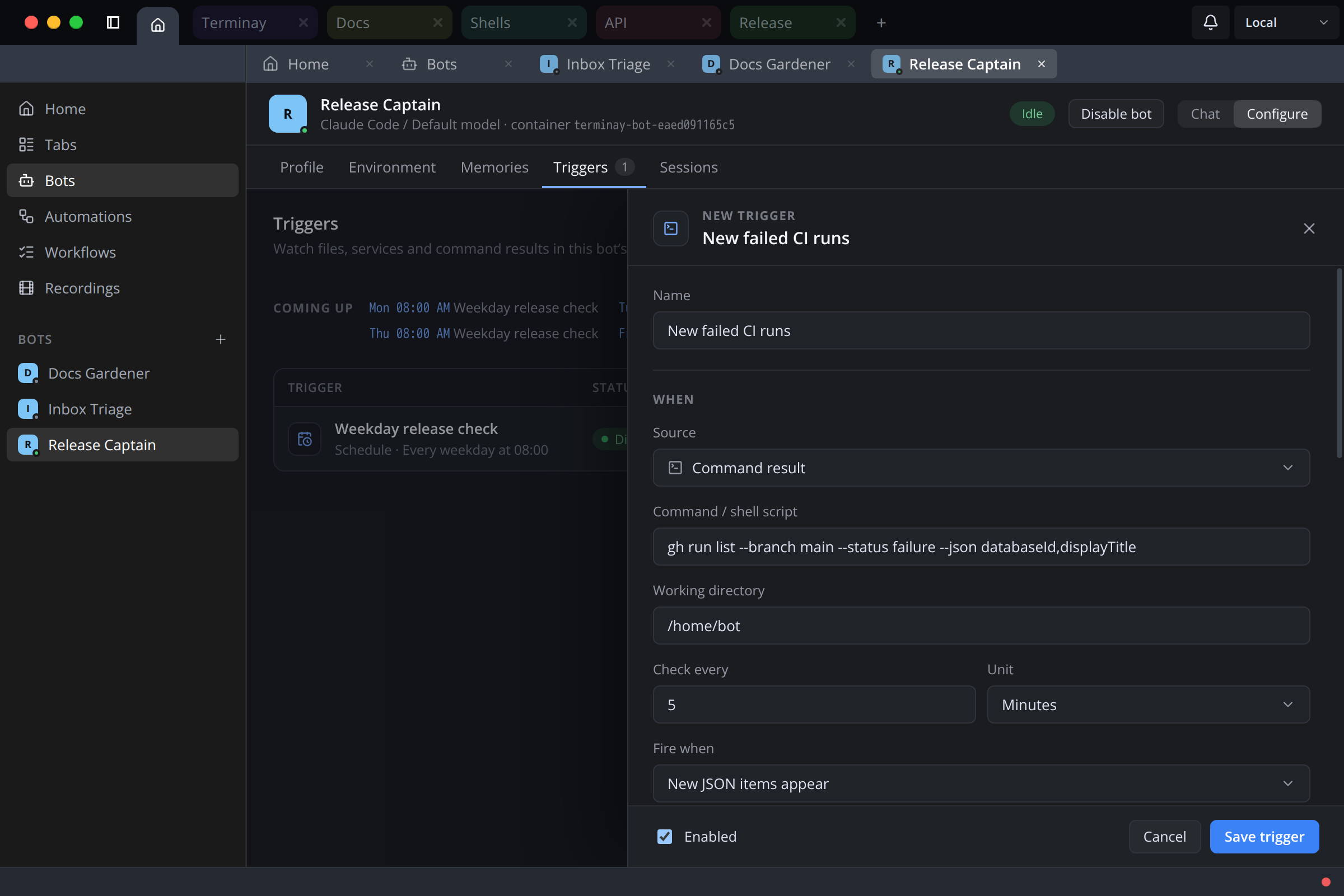
Every source runs inside the bot's own container, with its tools and credentials. There is no inbound webhook. Commands and HTTP checks can run as often as once a minute, and a check only starts an AI session when its condition fires. With New JSON items appear, each new item gets a session of its own. Test source runs one check and says how many events would fire, without starting a session.
For a command or HTTP check that matches text, a regular expression, or an exit code, choose whether the trigger fires when the result starts matching or on every matching check. The editor doesn't flag problems until you edit: a bad condition is shown under When, and a refused save says why beside Save.
If Terminay Server was offline chooses what happens after downtime: skip missed runs, run once on return, or run each missed occurrence for time sources; recover what the source still has, or ignore the gap, for watchers. Missed schedules are listed on the trigger until you dismiss them.
The Triggers tab lists the bot's triggers in a table: each one's source, name, and condition in plain words, its status, when it was last checked, when it last fired, and when it fires next, with an enable switch, Run now, and delete. A check that runs without firing updates Last checked but not Last fired. Coming up lists the bot's firings for the next seven days. Click a row, or New trigger, to open the editor in a sheet over the table. Closing the sheet keeps an unsaved draft for the next time you open it.
Disable bot, in the bot tab's header, pauses every source and automatic wake-up without stopping the container, and Enable bot resumes them. A bot can also create and manage its own triggers.
Memories
A bot's memories are the Markdown files in the memories folder of its home. Configure → Memories lists them with when each last changed, and lets you search, read, create, edit, pin, and delete them, whether the container is running or stopped. Memories the bot writes appear without a reload.
Each session starts with the bot's instructions, where its memories are kept, and its pinned memories, newest first, up to 16 KiB.
Environment
Configure → Environment manages the bot's container:
- Overview: state and uptime, image and whether the container is current, home volume, CPU, memory, and process limits (2 CPUs, 4 GiB, and 1024 processes by default), the idle stop period, the container log, and Start, Stop, Restart, and Recreate. When the image changes, a running bot offers Recreate to update.
- Files: browse the bot's home, preview, upload files of up to 1 GiB, download, create folders, rename, and delete, even while the container is stopped.
- Shell: a terminal in the container as the bot's user, in its home.
- Desktop: the bot's desktop, live. It opens view-only; switch to control to use the mouse and keyboard, or open it in its own window. The desktop is relayed through your Terminay connection, so remote devices need no extra port.
- Containers: containers the bot started through the engine, with start, stop, restart, logs, and remove.
Everything outside the home volume resets when the container is recreated. Terminay publishes no port from a bot's container.
The Engine Socket
Each bot gets the server's container engine at /var/run/docker.sock through a proxy, with Docker CLI and Compose installed, so it can build and run containers for its work. The proxy labels what the bot creates, and the Containers tab lists those. It does not limit what the bot can do with the engine: a bot can control any container on that engine, so give bots work you would trust them with on that machine.
Sessions
Every message and every trigger firing is a session. Configure → Sessions lists them newest first, filtered by origin (chat, trigger, or Run now) and outcome, and searchable. Open one to read its transcript, tool activity, and runner output, or Stop it while it runs. A bot keeps its newest 200 sessions, or every session from the last 30 days if that is more.
Sessions that were running when the server stopped come back marked interrupted. They are kept for reading and never resumed on their own.
The Bots Dashboard
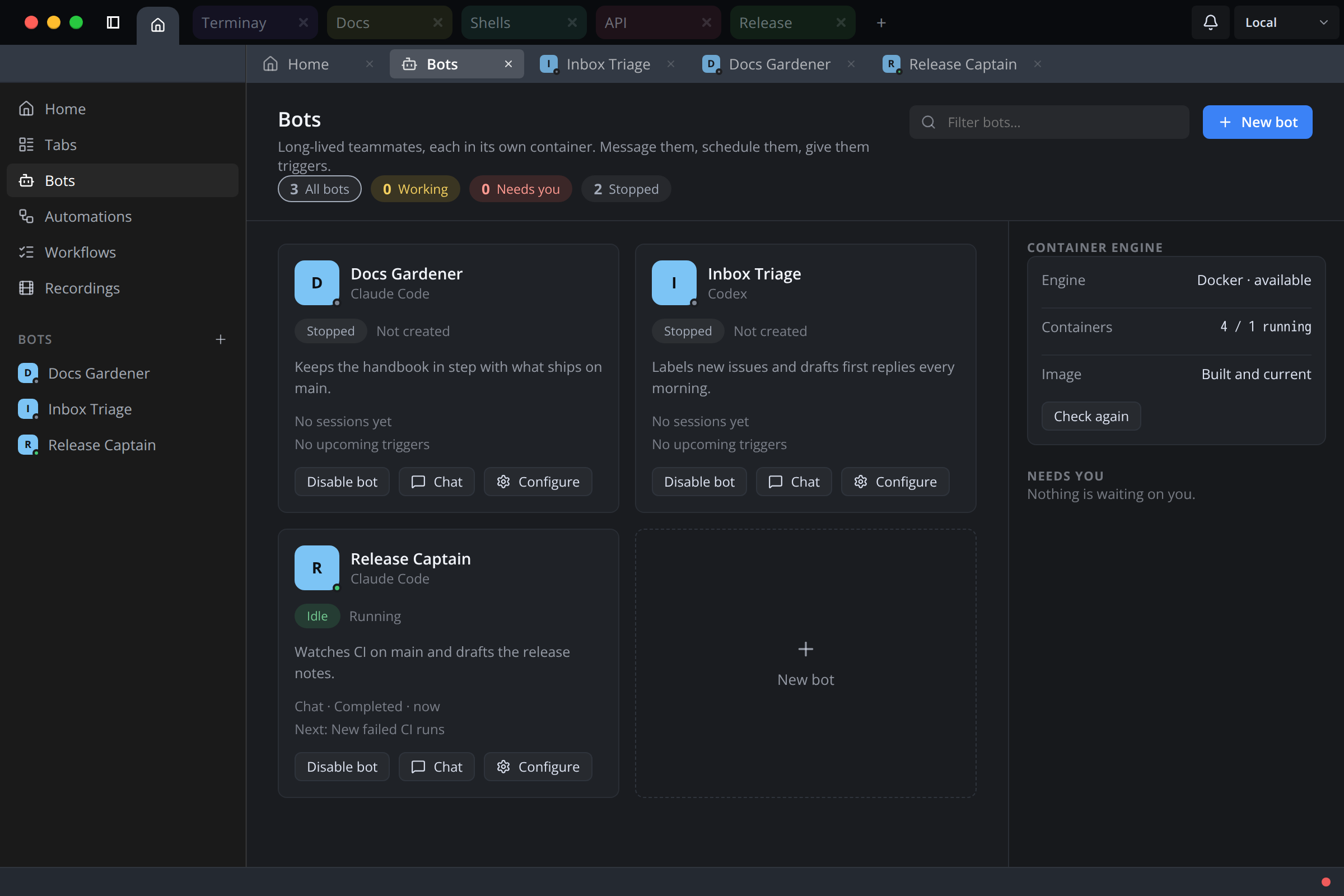
The Bots section shows a card per bot with its agent and model, environment state, activity (working, needs you, queued, idle, or stopped), latest session, and next trigger. Filter by working, needs you, or stopped. Needs you lists every session waiting on a permission answer; open one to answer it in its bot's tab. The engine summary shows which engine is in use, how many bot containers run, and whether the image is current.
Deleting A Bot
Delete a bot from its Profile. Terminay stops its session, then removes its container, network, triggers, and sessions. You choose whether to keep its home volume; keeping it is the default. Containers the bot started through the engine socket are left running, and the confirmation says how many there are.
Who Can Use Bots
Every bot operation needs the right to create terminals on that server. Terminay MCP callers, including agents in terminals and Pixel, cannot create, read, or prompt bots. A bot's own tools reach only that bot. Bring your own agent to bots with a bot agent extension.