Shortcuts
Terminay uses platform-aware shortcut labels. On macOS, CmdOrCtrl appears as Command; on Windows and Linux it appears as Ctrl.
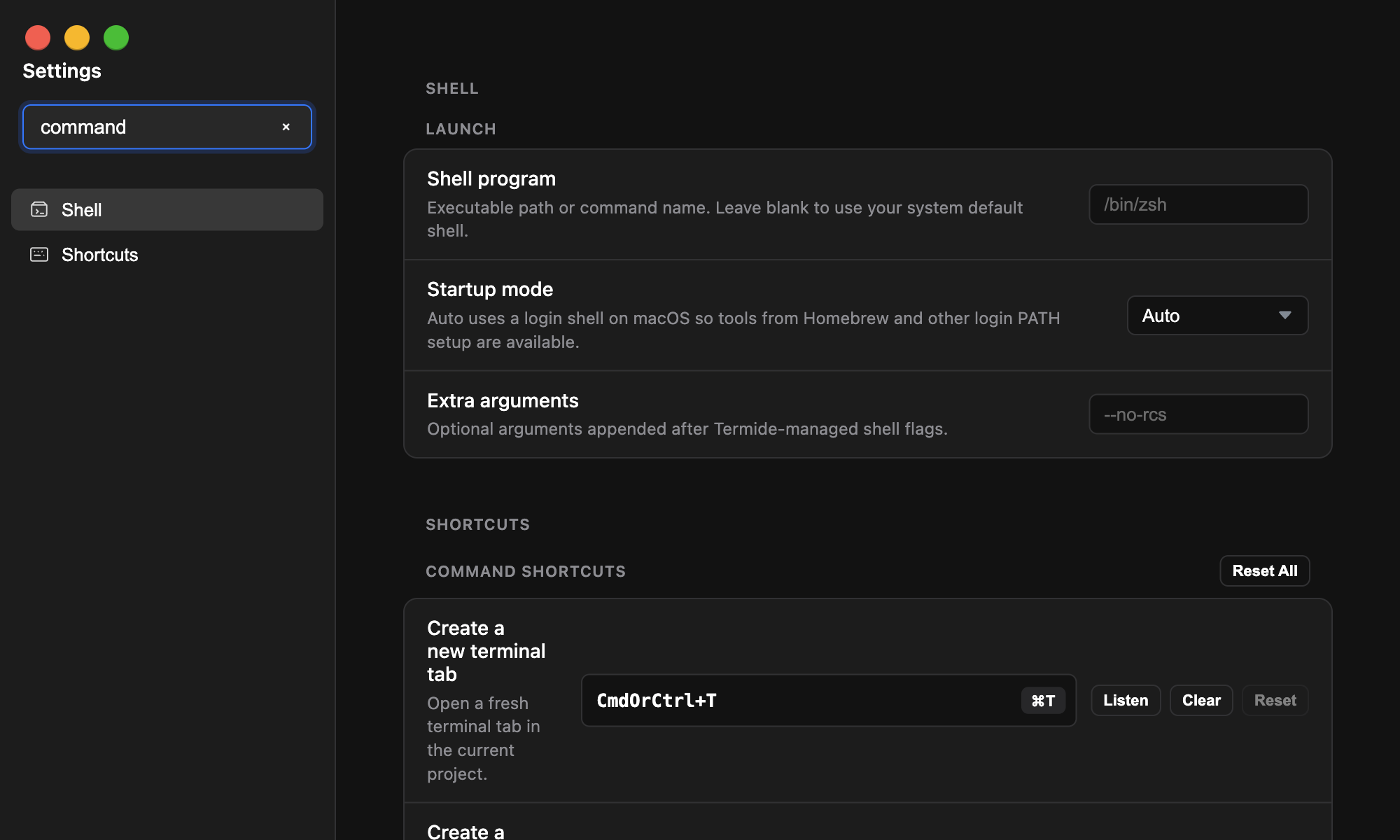
Default App Shortcuts
| Action | Shortcut |
|---|---|
| Create a new terminal tab | Cmd/Ctrl+T |
| Create a new project | Cmd/Ctrl+P |
| Clear terminal | Cmd/Ctrl+K |
| Save active tab | Cmd/Ctrl+S |
| Split horizontally | Cmd/Ctrl+Shift+- |
| Split vertically | Cmd/Ctrl+Shift+\ |
| Pop out active tab | Cmd/Ctrl+Shift+P |
| Close active tab | Cmd/Ctrl+W |
| Open Command Bar | Cmd/Ctrl+L |
| Set project root folder to working directory | Cmd/Ctrl+R |
The app menu also includes Cmd/Ctrl+, for Settings, Cmd/Ctrl+; for Macros, and zoom controls with Cmd/Ctrl+0, Cmd/Ctrl+=, and Cmd/Ctrl+-.
Customize Shortcuts
Open Settings, then choose Shortcuts. Each command has a shortcut field plus Listen, Clear, and Reset controls.
To change a shortcut, click Listen or focus the shortcut field, then press the key combination you want. Press Esc while listening to cancel without changing it. Terminay saves the new binding automatically and updates Command Bar labels and menu accelerators.
Click Clear to disable a command shortcut. A disabled shortcut shows as Disabled and is removed from the app menu accelerator. Click Reset to restore one command, or Reset All to restore every default shortcut.
Conflicts
Terminay warns when two commands use the same shortcut, for example Also used by new terminal. Conflicts are allowed, but they can make a shortcut run a different command than expected, so use unique key combinations for commands you rely on.
Command Bar
Open the Command Bar with Cmd/Ctrl+L. It searches built-in commands and macros, and shows each command's current shortcut beside the result. Updated or disabled shortcuts are reflected there.
Terminal Shortcuts
| Action | Shortcut |
|---|---|
| Smart paste clipboard | Cmd+V on macOS, Ctrl+Shift+V elsewhere |
| Switch terminal tabs or panes | Alt+Tab, or Shift+Alt+Tab backward |
| Open terminal search | Cmd+F on macOS |
| Next search result | Enter in the search field |
| Previous search result | Shift+Enter in the search field |
| Close terminal search | Esc |
| Insert a newline without submitting | Shift+Enter or Alt+Enter |