Command Bar
Open the Command Bar with Cmd/Ctrl+L to search Terminay commands and saved macros from one keyboard-first launcher.
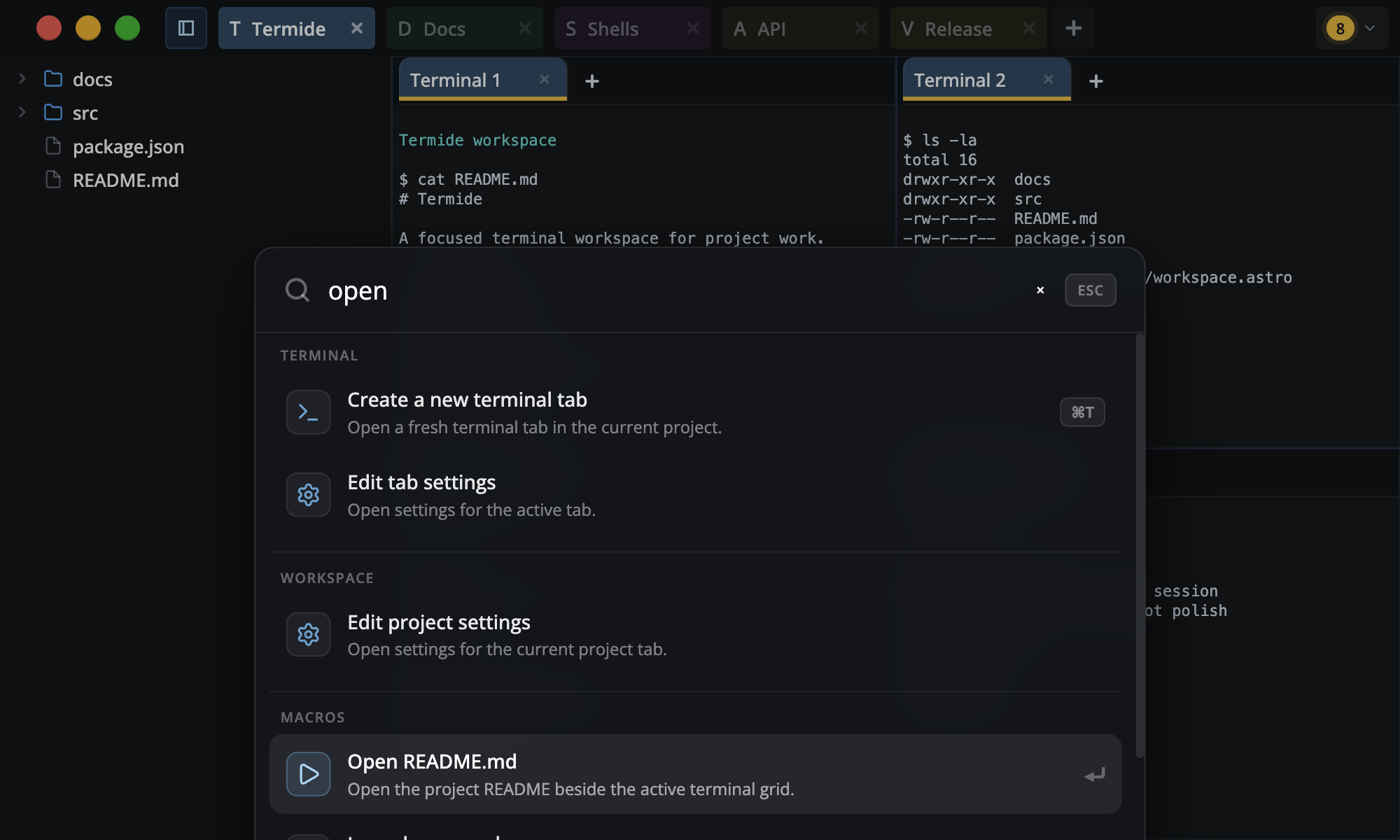
Search And Run
Start typing to filter results. Direct title matches appear first, and search also considers descriptions, shortcut text, macro names, macro descriptions, macro fields, and typed macro steps.
- Use the up and down arrow keys to move through results.
- Press
Enterto run the selected item. - Press
Escto close the Command Bar. - Click a result to run it with the mouse.
When a command has a shortcut, the current binding is shown beside it.
Built-In Commands
Built-in commands are grouped by family.
- Terminal: create a terminal tab, clear the active terminal, edit the active tab, or generate a tab title/note with the configured AI provider.
- Workspace: create a project, edit project settings, show or hide the file explorer, and set the project root to the active terminal working directory.
- Macros: run any saved macro from the same launcher.
Macros In The Command Bar
Macros appear automatically after they are saved. Selecting a macro without fields runs it in the active terminal immediately. If a macro has fields, Terminay opens a parameter form first, shows a rendered command preview, and runs it when you choose Type Macro.
Macro runs are tracked from the terminal tab's macro queue.
Shortcut Labels
Change command shortcuts in Settings > Shortcuts. Updated or disabled shortcuts are reflected in the Command Bar and app menus.