Folders
Use folders when you want to browse a project directory without leaving your workspace.
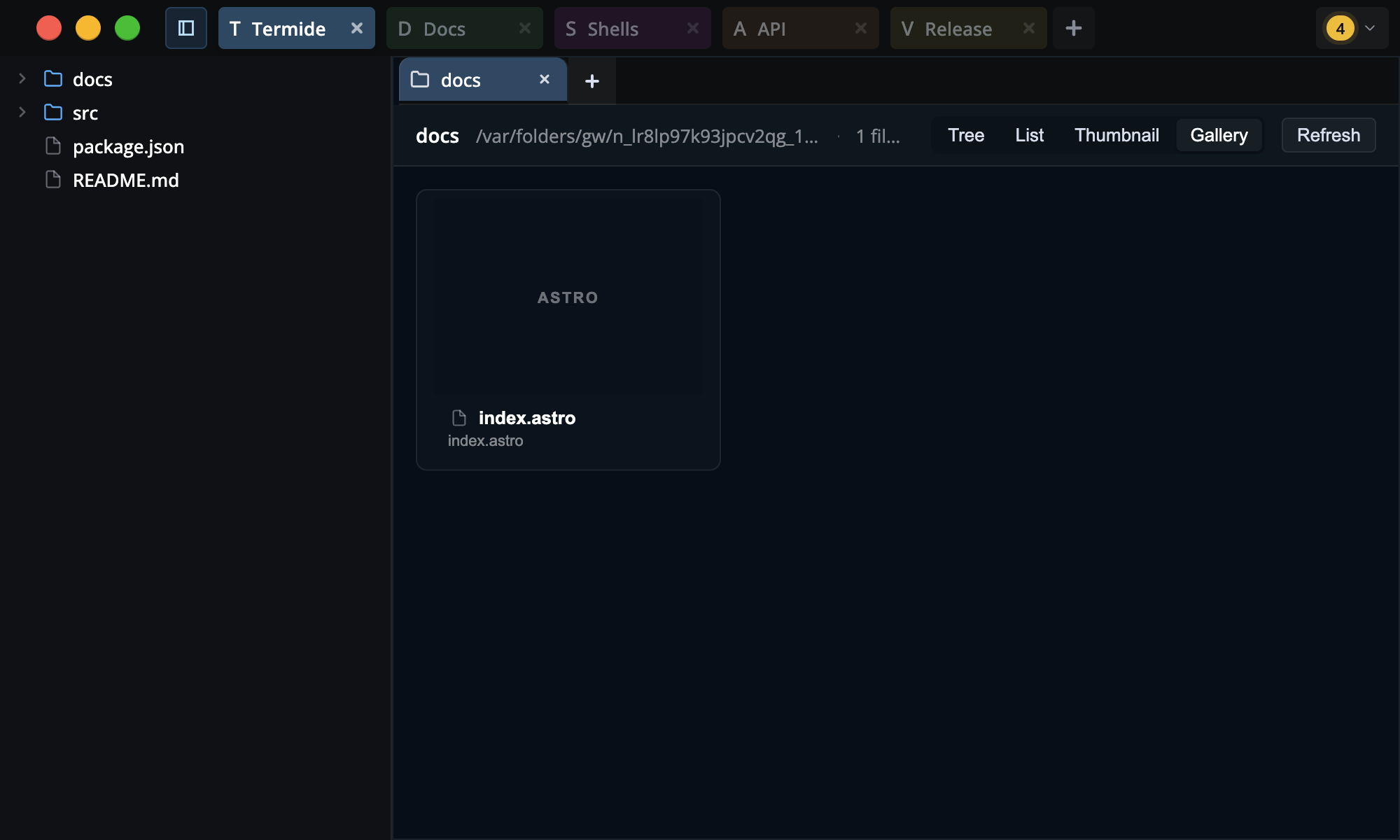
Open Folder Tabs
Open the file explorer from the sidebar button, then double-click any folder to open it as a folder tab. If that folder is already open, Terminay switches back to the existing tab.
A folder tab shows the folder name, full path, and a count of files and folders at the top.
Views
- Tree: browse nested folders inline. Expand a folder to load its contents, or double-click it to move the current folder tab into that folder.
- Tasks: aggregate every Markdown checklist beneath the folder into one progress dashboard. See the Tasks guide.
- List: browse the current folder as a sortable table with Name, Type, Size, Date Modified, Date Created, and Permissions columns. Click a column header to sort ascending or descending, and use the
..row to move up a folder. - Thumbnail: browse the current folder as compact cards.
- Gallery: browse the current folder as larger visual cards.
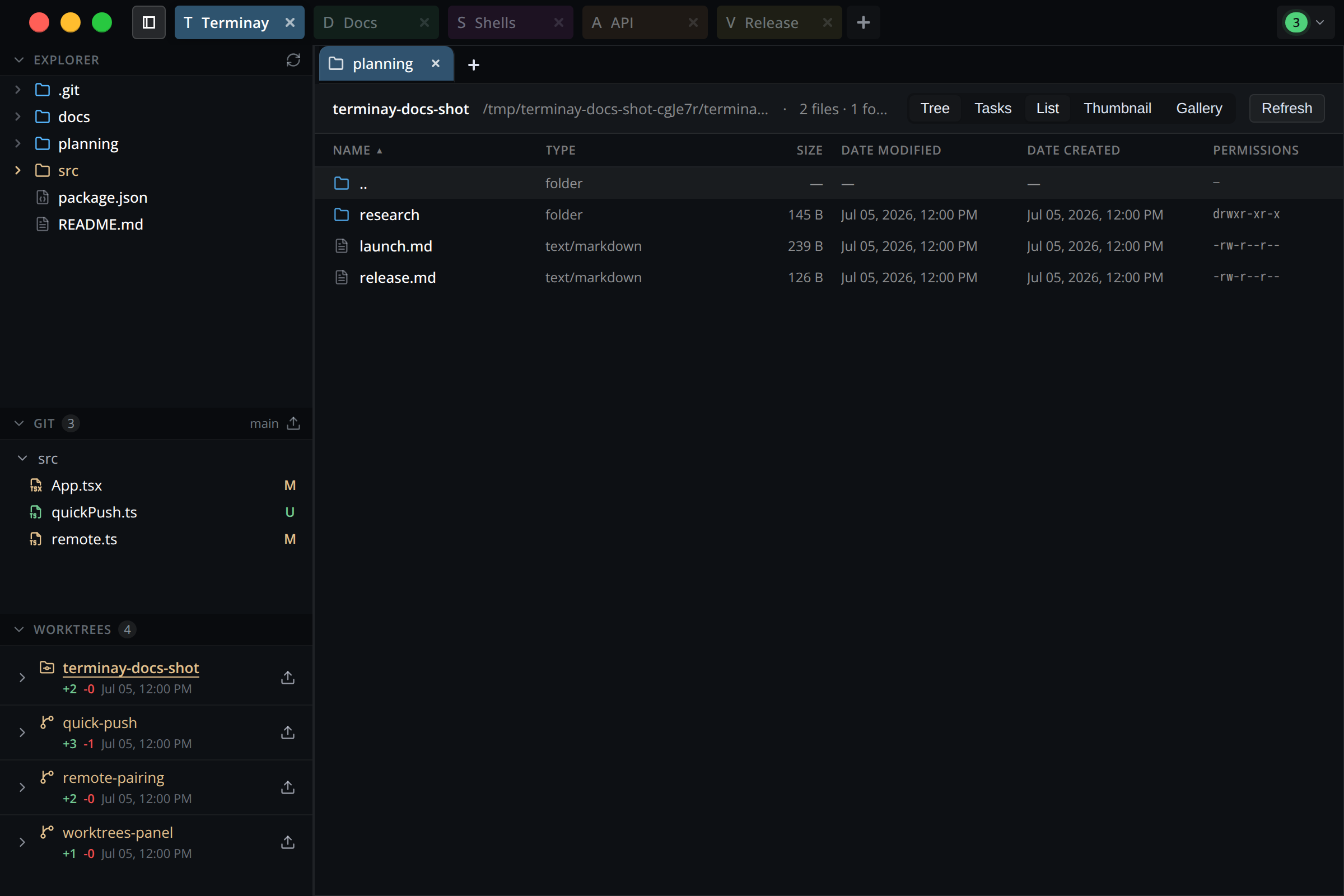
Every view shows a distinct icon for each file type, so you can scan a directory at a glance.
Navigation And Refresh
Double-click a file in any folder view to open it in a file tab. Double-click a folder in List, Thumbnail, or Gallery to navigate the same folder tab into that folder, or use the .. row in List view to move up.
Click the folder path at the top of the tab to edit it, then type any path and press Enter to jump straight there. Folder sizes in List view are calculated on demand — click a folder's size to measure it, with a cancelable progress dialog for large trees.
Use Refresh to rescan the current folder after files change outside Terminay. If loading fails, use Retry.
Thumbnails
Image files show real thumbnails in Thumbnail and Gallery views. Supported image types include AVIF, BMP, GIF, HEIC/HEIF, JPEG, PNG, SVG, TIFF, and WebP. Non-image files show a distinct icon for their file type, and folders show a folder icon.
Folder Actions
Right-click inside a folder tab to use folder actions. On folders, you can create a new file, create a new folder, rename, delete, copy the path or relative path, open a shell in that folder, or reveal it in your OS file manager. On files, you can rename, delete, copy the path or relative path, open a shell in the file's containing folder, or reveal it. New files open immediately in a file tab.
Sidebar Versus Folder Tabs
The file explorer sidebar is for quick project navigation. Click a folder once in the sidebar to expand or collapse it; double-click a folder to open it as a folder tab. The sidebar stays compact, while folder tabs give you richer views for one folder.