Worktrees
The Git panel lists every git worktree of your project so you can see what each branch is working on, jump between them, and manage them without leaving Terminay.
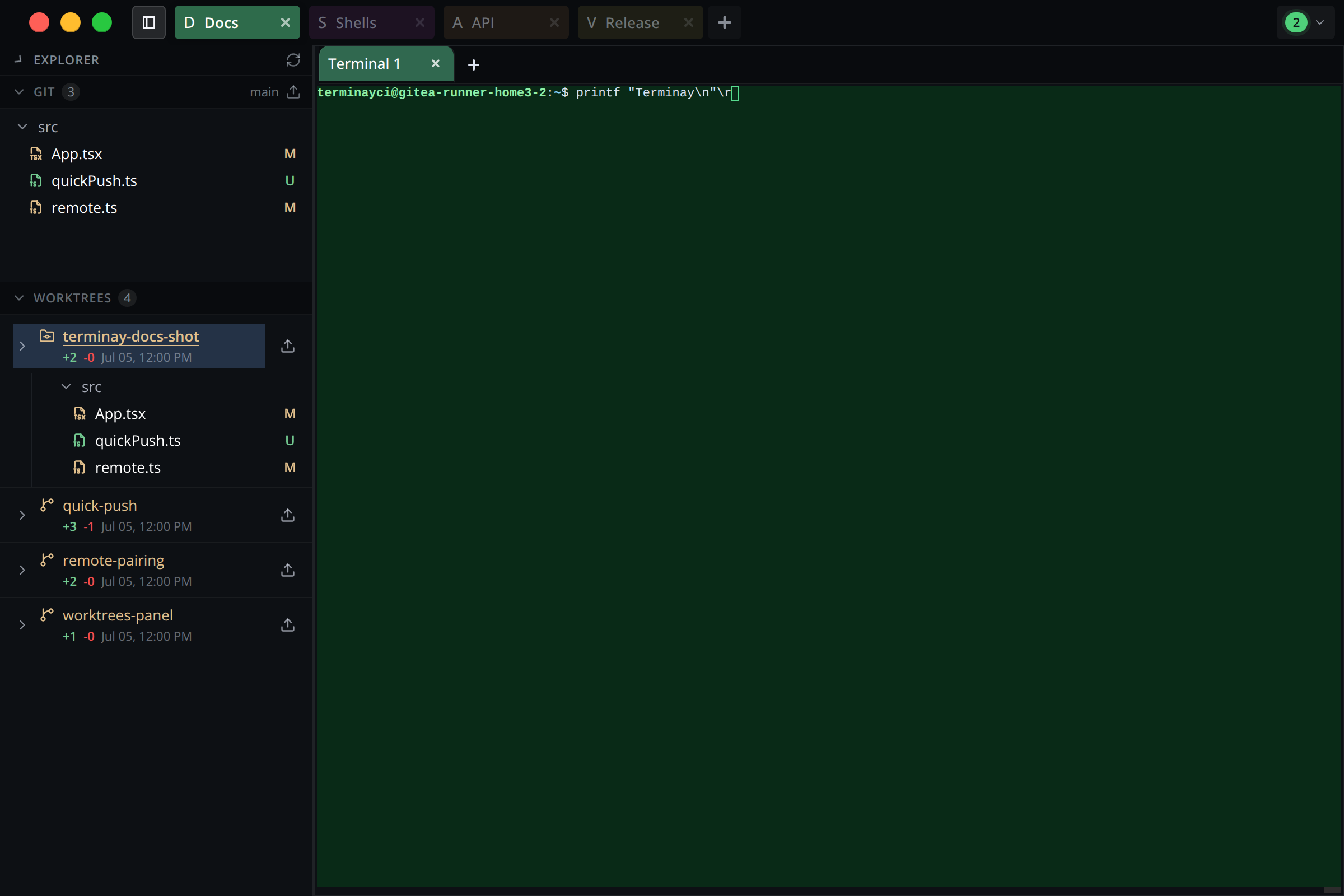
The Git Panel
Open the file explorer from the sidebar button. The Git panel sits below Explorer and lists every worktree of the current repository, with a count beside the pane title. The main worktree is marked with a repository icon; linked worktrees use a branch icon.
Click a worktree header to expand or collapse it and see that worktree's changed files inline. When the project folder is not a git repository, or git is unavailable, the panel says so instead of listing worktrees.
Reading A Worktree
Each row summarizes the state of one worktree:
- Branch: the checked-out branch, or
HEADwhen the worktree is detached. - Line changes: the
+additions and-deletions across commits ahead ofmainand the working tree. A worktree with nothing outstanding shows clean instead. - Last changed: when the worktree was last touched, by commit time or file changes.
- Outstanding work: worktrees with commits ahead of
mainor uncommitted changes are highlighted so you can spot work that has not landed yet.
Expand a worktree to see its changed files inline, using the configured list or tree layout. Hover a worktree header for a tooltip with its full path, branch, HEAD, commits ahead of main, file and line counts, and last-changed time.
Worktree Actions
Right-click a worktree to open its actions menu:
- Switch project root: point the active project tab at this worktree so the file explorer, Git pane, and terminals all follow it. Disabled for the worktree you are already in.
- Rename worktree: rename the worktree's folder on disk. If the project root currently points at it, Terminay follows the new location.
- Delete worktree: permanently remove the worktree folder, including any uncommitted and untracked files. Terminay asks for confirmation first.
- Open terminal here: open a new terminal tab in the worktree's folder.
- Reveal in OS: show the worktree folder in your file manager.
The current worktree, the main worktree, and bare worktrees cannot be renamed, moved, or removed. Bare and prunable worktrees show a short status message in place of their changes.
Settings
In Settings, the Sidebar section controls whether the Git panel starts expanded or collapsed in new projects. The Git changes view setting controls whether changed files inside expanded worktrees render as a tree or a flat list.