Quick Push
Quick Push turns your working changes into commits and a pull request with an AI agent. It drafts a commit plan from your diff, lets you review it, and pushes once you approve.
Set Up The Git Push Agent
Quick Push needs an AI agent. Open Settings → AI → Git Push Agent and choose Codex or Claude Code, then pick the model it should use. You can also customize the prompt sent to the agent, using {{task}} for the chosen push action and {{branch}} for the current branch.
While the agent is set to Disable, the push button opens Settings instead of running.
The Push Menu
Expand the Git panel in the file explorer sidebar and choose the upload button on the worktree you want to push (Commit & push with AI). The menu offers four actions:
- Push to current branch: commit everything and push to the branch you are on.
- Push to current branch + PR: commit, push, and open a pull request.
- Push to new branch: commit onto a new, descriptively named branch and push it.
- Push to new branch + PR: commit onto a new branch, push it, and open a pull request.
Two Ways To Run
Each menu action can run two ways:
- Agent mode: click the action to launch the agent in a new terminal tab, where it works through the commit and push interactively.
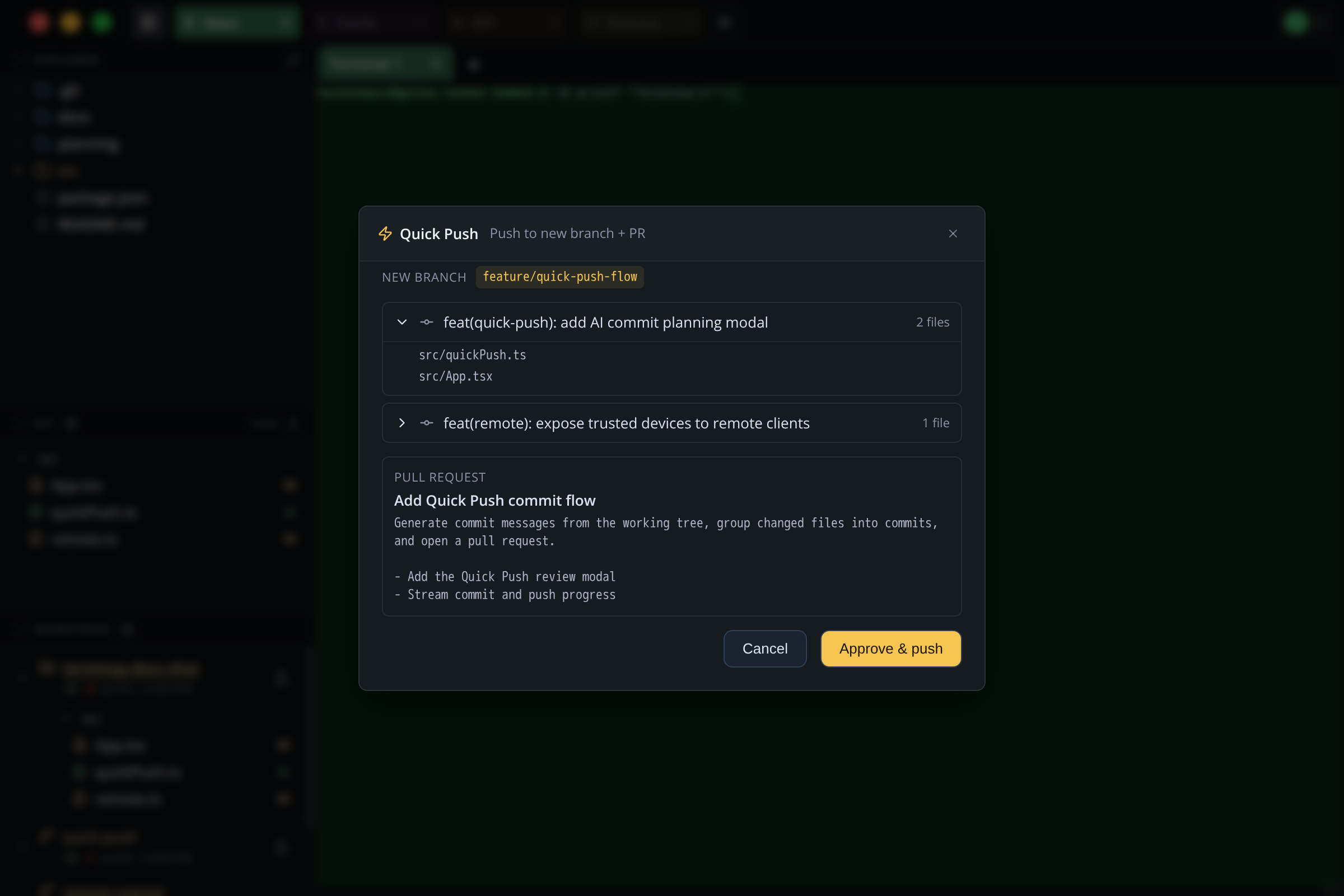
- Quick mode: click the lightning bolt beside an action to open the Quick Push review window instead. This is the fast path — the agent drafts the whole plan up front and you approve it in one step.
Reviewing The Plan
In quick mode, Terminay gathers your changes and asks the agent to draft a plan, then shows it for review:
- Commits: each proposed commit lists its message and the files it covers. Expand a commit to see the exact files.
- New branch: for new-branch actions, the branch name the agent chose.
- Pull request: for PR actions, the title and body that will be used.
- Warnings: any changed files the plan does not cover are called out so nothing is committed by surprise, alongside other notes from the agent.
Approve And Push
Choose Approve & push to run the plan. Terminay commits, pushes, and opens the pull request as needed, showing each step's result as it goes. When it finishes you get a View pull request link, or confirmation of the branch it pushed to. If a step fails, the error is shown so you can fix it and try again.
You can cancel during review, but the window stays open while a push is in progress so it is not closed mid-commit.