Macros
Macros are saved terminal automations. Run them from the Command Bar, or manage them from the Macros window.
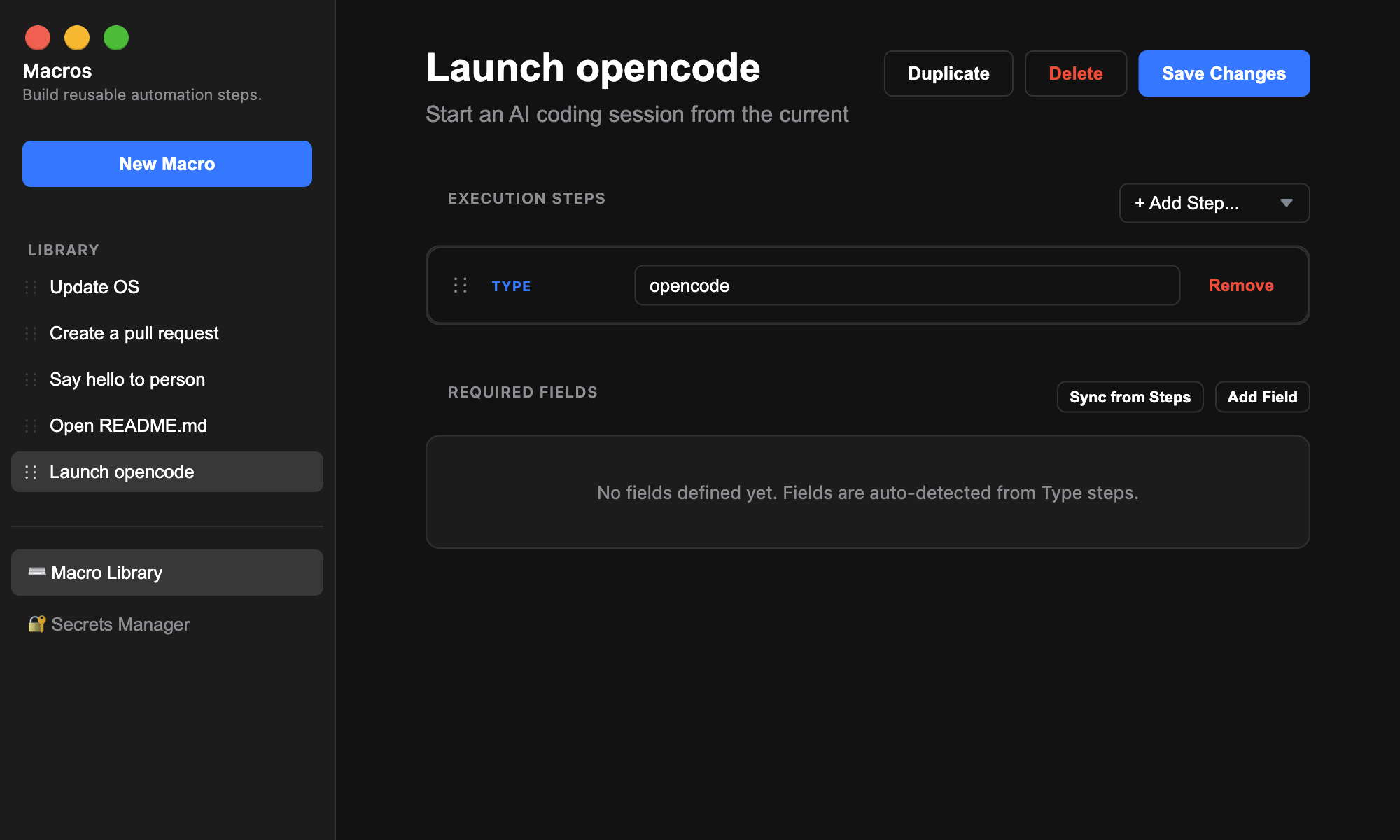
Macro Library
Open the Macros window to manage your library. Select a macro from the Library list, or use New Macro to create one. Edit the title and description, then choose Save Changes.
- Use Duplicate to copy the selected macro.
- Use Delete to remove it.
- Drag macros in the Library list to reorder them.
- Use Reset All to restore the default starter macro set.
Steps
A macro runs its steps from top to bottom. Add steps from Execution Steps, then drag them to reorder or remove steps you no longer need.
- Type Text: types text into the active terminal.
- Press Key: sends Enter, Tab, Escape, Backspace, Up Arrow, or Down Arrow.
- Insert Secret: inserts a saved secret value.
- Wait (Time): pauses for the number of milliseconds you enter.
- Wait (Inactivity): waits until the terminal has stopped outputting data for the number of milliseconds you enter.
- Paste Clipboard: inserts the current clipboard text.
- Select Line: appears in the step list, but currently does not send terminal input.
Placeholders And Fields
Placeholders come from Type Text steps and use double braces, for example deploy {{Environment}}. Choose Sync from Steps to detect placeholders and create matching required fields.
Fields can be text, textarea, select, number, checkbox, or emoji. Each field has a variable name, display label, type, and default value. Select fields use one option per line in Label|value format.
When you run a macro with fields, Terminay opens a form first. Required fields must be filled in before the macro can run. Macros with no fields run immediately.
Secrets Manager
Use the Secrets Manager tab to save named secrets. Enter a secret name and value, then choose Add Secret. Terminay stores secret values with OS-level encryption and only shows secret names in the manager.
To use a secret, add an Insert Secret step and select the saved secret name. When the macro runs, Terminay decrypts the value and writes it into the active terminal. Deleting a secret asks for confirmation and cannot be undone.
Running And Canceling
Run macros from the Command Bar with Cmd/Ctrl+L. Search by macro title, description, field name, or typed step text. Macros run in the active terminal.
When a macro starts, the terminal tab shows a macro queue indicator. Open it to see recent runs, overall status, and each step's status. Running macros can be canceled from the queue, and finished runs can be cleared individually or all at once.