Files
Use the file explorer sidebar to browse your project, then open files beside your terminals as dockable tabs.
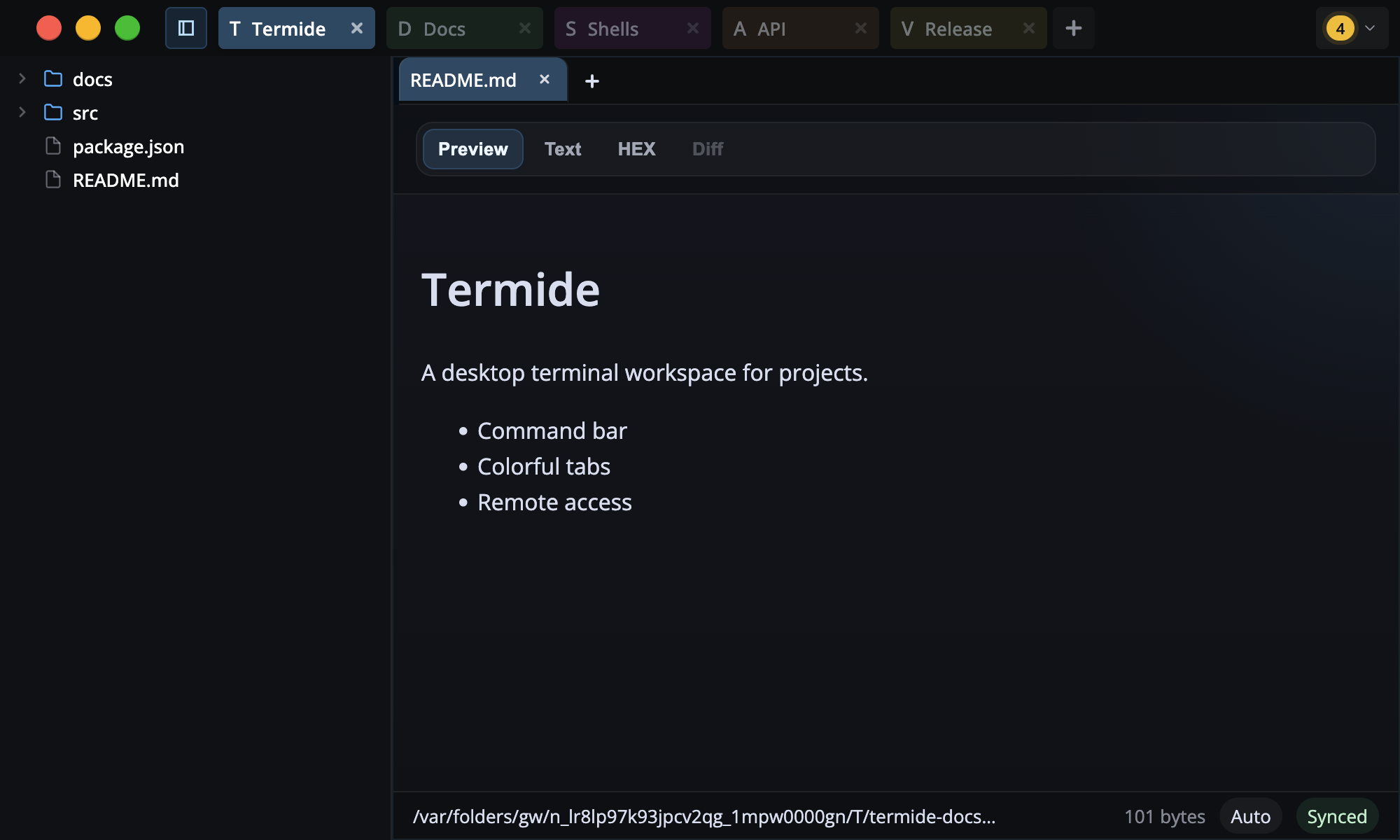
Open Files
Click a folder to expand it, double-click a folder to open it as a folder tab, or double-click a file to open it as a file tab. Reopening an already-open file focuses the existing tab instead of creating a duplicate.
Each entry in the explorer shows a distinct icon for its file type, and the Explorer header has a reload button that rescans the tree after files change outside Terminay.
View Modes
- Preview: shows supported content in a readable view. Markdown is rendered, images and PDFs are displayed, and text/code files are shown read-only with highlighting where available.
- Text: opens editable text files in Monaco by default. Large text files may ask you to choose between Performant mode and Monaco.
- HEX: shows bytes with offset, HEX, and ASCII columns. Invalid byte values are marked and must be fixed before saving.
- Diff: shows the file's Git diff against
HEADwhen the file is tracked in a Git repository.
Unsupported or binary files fall back to HEX when Preview or Text are not available. Preview explains when a preview type is unavailable, and Text mode is disabled for binary files.
Tasks
Markdown files with checkboxes get a dedicated Tasks view mode — a completion ring, heading groups, a Kanban board, filters, and Git diff awareness. See the Tasks guide for the full feature.
Save And Sync
The status bar shows the full file path, file size, active engine, and save state. Synced means the file matches disk. Unsaved changes means your current tab has local edits.
Save the active file with the app's Save command. After saving, Terminay verifies the saved contents and refreshes Git diff/status.
External Changes And Conflicts
If a file changes on disk while you have no local edits, Terminay reloads it automatically. If it changes on disk while you have unsaved edits, Terminay keeps your draft and shows a conflict banner.
- Reload from disk discards your draft and loads the disk version.
- Keep local edits keeps your draft so you can continue editing or save your version.
Large Files
For large text files over 100 MB, Terminay asks how to open the file. Performant mode keeps the viewer lighter and shows a truncated text window. Switch to Monaco before saving the full file. Monaco opens the full editor but may use more memory.
Git Status And Diff
When Git is available for the project, the file explorer marks new files and folders in green and modified files and folders in amber. Status refreshes periodically, on focus, after file operations, and after saves.
Diff mode is available only for tracked files. Untracked files show that a diff is unavailable. Binary Git diffs show a binary-diff message instead of text hunks.
File Operations
Right-click files and folders for file operations. Folders offer create file, create folder, rename, delete, copy path, copy relative path, open shell in folder, and reveal in OS. Files offer rename, delete, copy path, copy relative path, open shell in folder, and reveal in OS. Creating a file opens it in Text mode. Delete asks for confirmation.