Workspace
Terminay organizes work into project tabs. Each project keeps its own root folder, docked tab layout, file explorer state, color, and one-character icon.
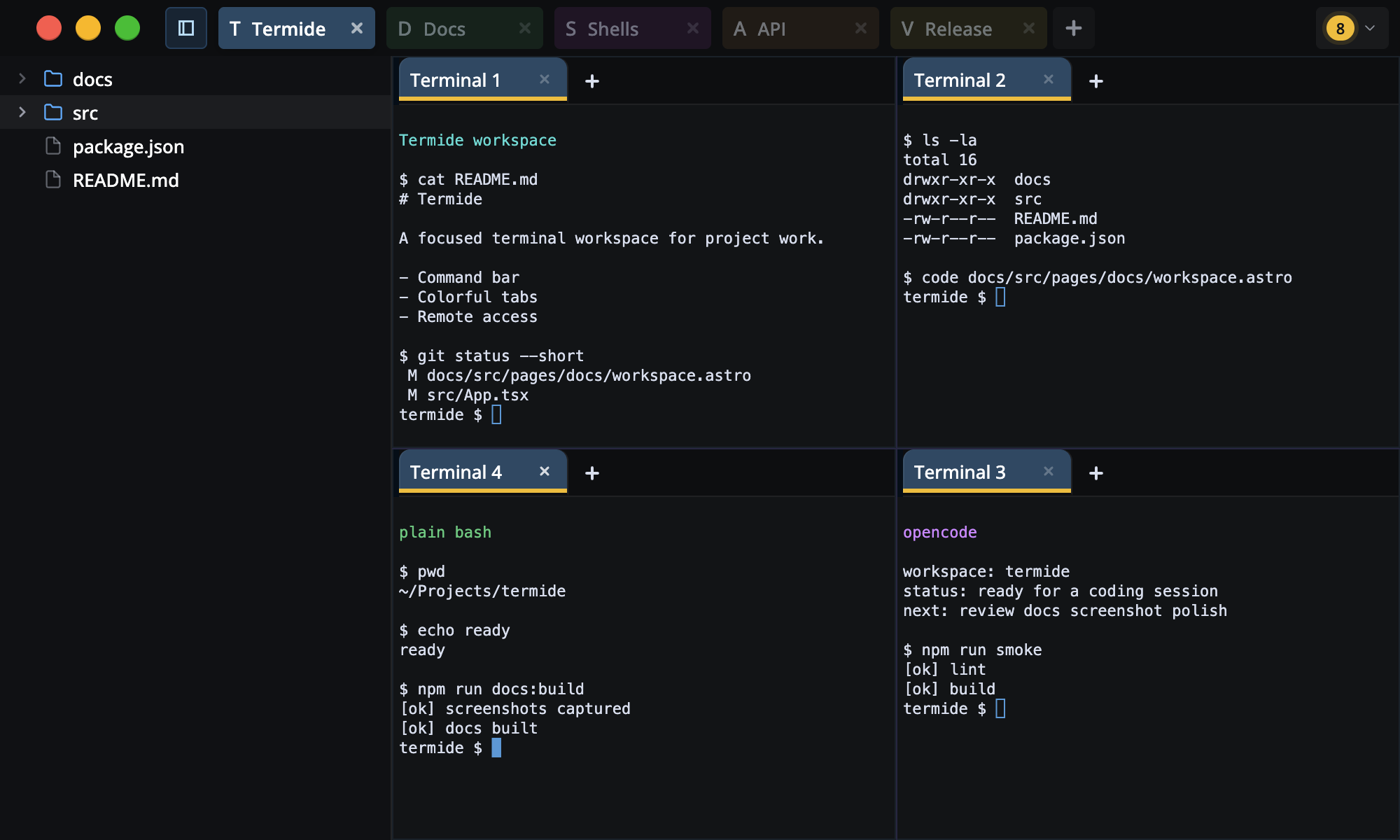
Projects
Use the plus button or Cmd/Ctrl+P to create a project. Click a project tab to switch to it, drag project tabs to reorder them, and double-click a project tab to rename it, set a color or icon, or change its root folder.
Closing a project removes that workspace. Closing the final project exits Terminay.
Terminals And Tabs
Each project starts with a terminal tab. Create another terminal with Cmd/Ctrl+T. New terminals inherit the active terminal's current working directory when available; otherwise they start from your home folder.
- Split the active terminal below with
Cmd/Ctrl+Shift+-. - Split the active terminal to the right with
Cmd/Ctrl+Shift+\. - Close the active terminal, file, or folder tab with
Cmd/Ctrl+W. - Pop the active tab into its own window with
Cmd/Ctrl+Shift+P.
Dock tabs can be moved, split, focused, and closed from either the main window or a popout.
Tab Styling
Double-click a terminal tab to edit its name, one-character icon, and color. Terminal tabs inherit the project color by default. Moving the hue slider gives the tab its own color, and the edit window can restore project-color inheritance.
Project Roots
The project root controls the file explorer and file/folder workflows. Set it manually from the project edit window, or use Cmd/Ctrl+R to make the active terminal's current directory the project root.
Blank root folder values and ~ resolve to your home folder.
File Explorer Sidebar
Use the sidebar button to show or hide the per-project file explorer. The sidebar opens at the project root, can be resized, shows Git new/modified coloring, shows an icon for each file type, expands folders, and opens files on double-click. A reload button in the Explorer header rescans the tree after files change outside Terminay.
Right-click files or folders to create files and folders, rename, delete, copy the path or relative path, open folders as tabs, open a shell at that location, or reveal them in your OS file manager. When opening a shell from a file, Terminay uses the file's parent folder as the working directory.