Remote Access
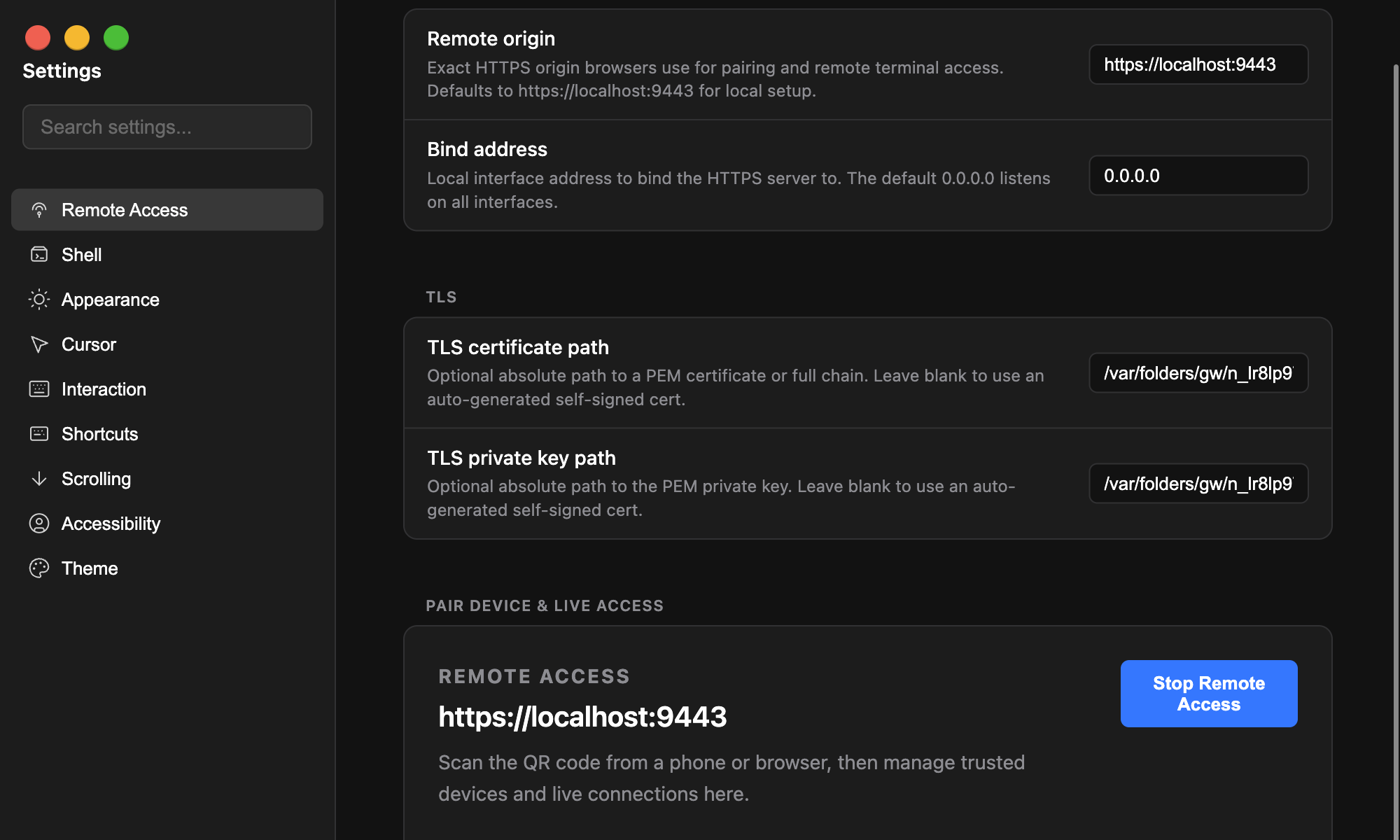
Terminay lets you use your workspace in a paired browser. Every remote connection uses WebRTC and keeps terminal traffic between the browser and your Terminay server.
Pair A Browser
In Terminay, create a pairing link and open it in the browser you want to use. A hosted link looks like https://app.terminay.com/?s=your-server#pairing-secret. Pasting it into a browser opens the Terminay app, asks whether to save and connect, and lets you give the connection a name. The secret is short-lived and can be used once.
The session page consumes the secret, removes it from browser history, and completes any required approval step with Terminay. When you open the link in the app, the browser creates a device key stored by the app for that server. When you open a session-origin pairing URL directly, the key stays on that session origin. Terminay saves the matching public key for that browser.
Save A Connection In The Terminay App
app.terminay.com is an installable connection manager. Open the pairing link in a browser, or choose
Add new connection and scan the pairing QR or paste the
complete pairing link. The app asks to save and connect, with an optional
name (the exposing machine's hostname by default). It then opens the
session in a fullscreen iframe so an iPhone Home Screen app can stay full screen.
The manager saves a local bookmark and, for that framed session, the device key used to reconnect. It does not keep the pairing secret, connection ticket, terminal data, or session status. You can rename or forget a saved connection at any time. Forgetting it removes that browser bookmark and its stored device key.
The manager works offline for viewing and organising saved connections. Opening a saved connection loads its stable origin inside the app. Terminay still handles connection and error status on that session page.
Reconnect Later
Select the saved connection in the Terminay app, or open its stable origin
directly, such as https://your-server.terminay.com. The
session page asks Terminay for a challenge, signs it with the device key,
and receives a short-lived ticket for one new WebRTC connection.
If the browser has not been paired, its device was revoked, or Terminay is unavailable, the session page explains what to do next. Create a new pairing link when pairing is required.
Use The Remote Workspace
Once connected, Terminay supplies the remote workspace bundle. It shows your projects and terminal sessions as tabs. Select a session to attach to it, type normally, and use the workspace controls to focus, clear, reset, change settings, or disconnect.
Remote sessions mirror the active Terminay workspace. If no terminals are running, the browser shows that there are no active sessions. Closed sessions disappear and exited sessions are marked as exited.
Security And Privacy
The pairing secret stays in the link fragment and is never saved by the connection manager or sent as part of a normal URL request. The private device key is non-extractable. When you open a server inside the installed app, that key is stored by the app for that server only. When you open the session address directly in the browser, the key stays on that session origin.
The signaling relay helps the browser and Terminay establish WebRTC. It does not proxy terminal traffic. Terminay can provide STUN or TURN configuration when a network needs it.
Each session origin is isolated from the others. The installed app stores only that server's reconnect key for framed sessions. The remote workspace bundle is authenticated and integrity-checked before it is cached at the session origin.
Manage Access
In Terminay Remote Control, review trusted browsers, revoke a browser that should no longer have access, inspect active connections, and close a connection when needed.
Troubleshooting
- Pairing link expired or already used: create a fresh pairing link in Terminay.
- Connection needs pairing: open a new pairing link in that browser.
- Browser was revoked: pair the browser again if you want to restore access.
- WebRTC cannot connect: check the session page message, then retry or check the network's STUN/TURN configuration.
- Wrong page: open the exact session origin in a saved connection. Use
app.terminay.comonly to manage bookmarks.