Settings
Use Settings to customize Terminay's terminal behavior, recordings, remote access, appearance, command shortcuts, themes, and accessibility.
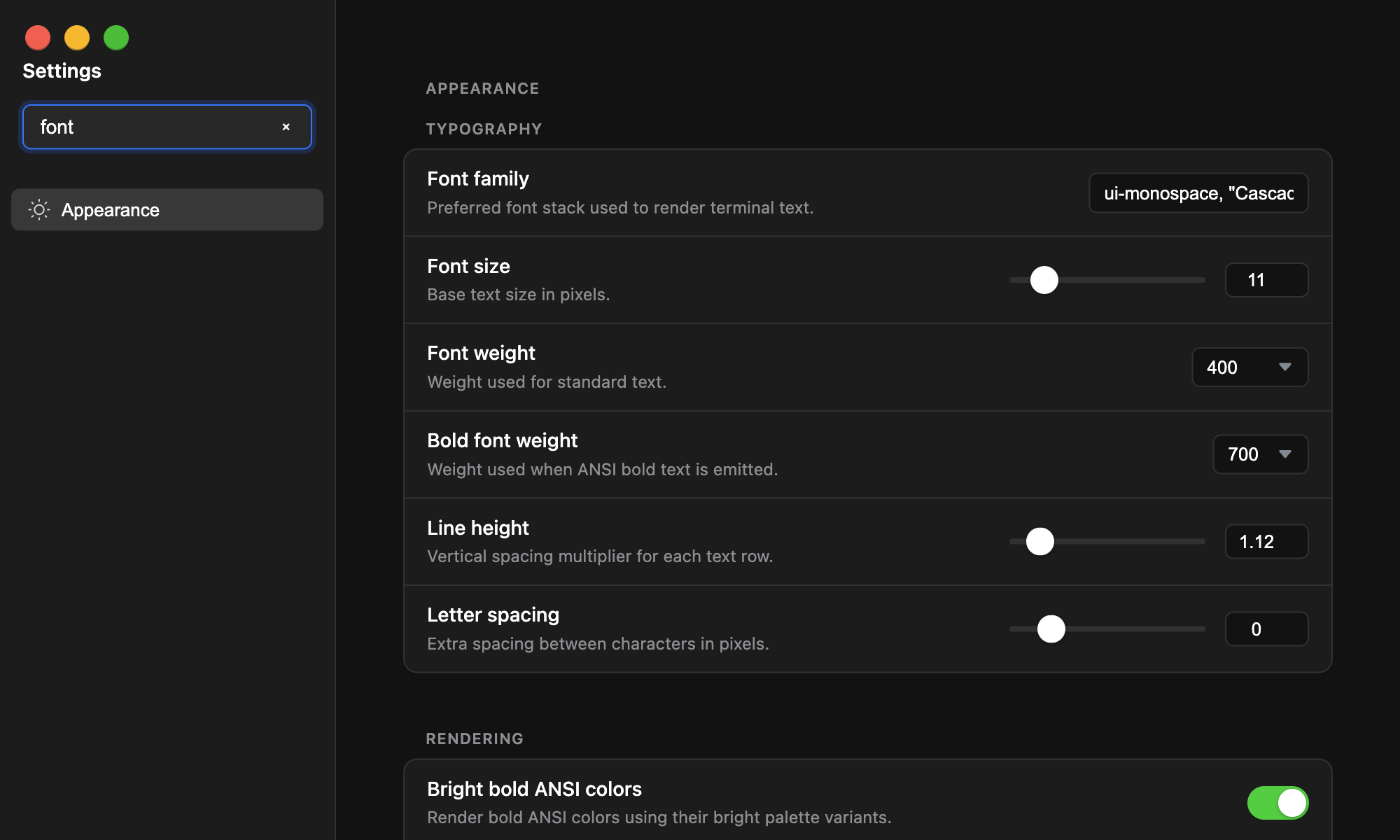
Finding Settings
Settings are organized by category in the sidebar. Use search to filter matching categories, sections, fields, descriptions, setting keys, and keywords. Choosing a category clears the search and jumps to that category.
Changes save automatically as you edit. The footer shows Saving..., Loading..., or Saved. Use Reset to defaults to restore all settings after confirming the reset.
Categories
- AI: provider and model choices for Command Bar actions that generate terminal tab titles and notes with Codex or Claude Code.
- Remote Access: origin, bind address, TLS certificate/key paths, pairing, trusted devices, active connections, and recent audit events.
- Recording: automatic recording for new terminals, the local recordings directory, and controls for saved terminal session files.
- Shell: shell program, startup mode, extra launch arguments, and close-on-success behavior.
- Appearance: font family, size, weight, line height, letter spacing, glyph rendering, bold color behavior, and transparency support.
- Cursor: active cursor shape, inactive cursor style, blinking, and bar cursor width.
- Interaction: input behavior, line endings, paste behavior, tab width, mouse selection, Option/Meta behavior, and word separators.
- Shortcuts: command key bindings for creating tabs/projects, clearing terminals, saving, splitting, popping out, closing, opening the Command Bar, and setting the project root.
- Scrolling: scrollback length, scroll-to-bottom behavior, clear-screen behavior, wheel/trackpad sensitivity, fast scrolling, and smooth scroll duration.
- Accessibility: minimum contrast ratio and screen reader mode.
- Theme: foreground/background colors, cursor colors, selection colors, Tab Theme Hue color mode, scrollbar colors, and ANSI color palette.
Live Preview
Appearance, cursor, and theme changes show a live terminal preview. The preview updates immediately, can be resized, and can be hidden or shown again.
Theme Colors
Theme color fields can use a fixed custom color, and supported cursor and selection fields can use Tab Theme Hue. Tab Theme Hue resolves the terminal color from the active terminal tab or project color, so each tab can carry its own cursor and selection accent.
Terminay uses Tab Theme Hue for the default cursor and selection highlight, while falling back to readable static colors when a terminal has no tab color available.
When a color uses Tab Theme Hue, a brightness slider (0–100%) sets how light or dark that hue renders, so you can derive anything from a subtle dark background to a vivid accent from the same tab color. Out of the box, the terminal background is a dark tint of the tab hue, so tabs of different colors carry subtly different backgrounds.
AI Tab Metadata
Open AI to choose whether Command Bar actions can generate terminal tab titles or notes. Each target can be disabled or configured independently with Codex or Claude Code, then assigned a provider-specific model.
Codex models are discovered through the Codex CLI. Claude Code exposes a small built-in model list because its CLI does not currently provide model discovery.
AI generation uses recent terminal output as bounded context. If the selected provider cannot load models or generate text, Terminay leaves the existing title or note unchanged.
Shell
Leave Shell program blank to use the system default shell. Choose Auto, Login shell, or Non-login shell for startup mode. On macOS, Auto starts a login shell so login PATH setup is available.
Extra arguments are appended after Terminay-managed shell flags. Enable Close tabs on successful exit to automatically close a terminal tab when its shell exits with code 0.
Remote Access Settings
Set Remote origin to the HTTPS origin browsers use for pairing and remote terminal access. The default is https://localhost:9443. Set Bind address to the local interface Terminay listens on; 0.0.0.0 listens on all interfaces.
Leave TLS certificate and key paths blank to let Terminay generate a self-signed certificate. Provide absolute PEM paths to use your own certificate and private key.
Shortcut Settings
Open Shortcuts to customize app command key bindings. Click Listen and press a key combination. Press Esc while listening to cancel. Use Clear to disable a shortcut, Reset to restore one shortcut, or Reset All to restore every default.
Terminay normalizes shortcut names and shows platform labels. If two commands use the same shortcut, Settings shows a conflict warning.