Tasks
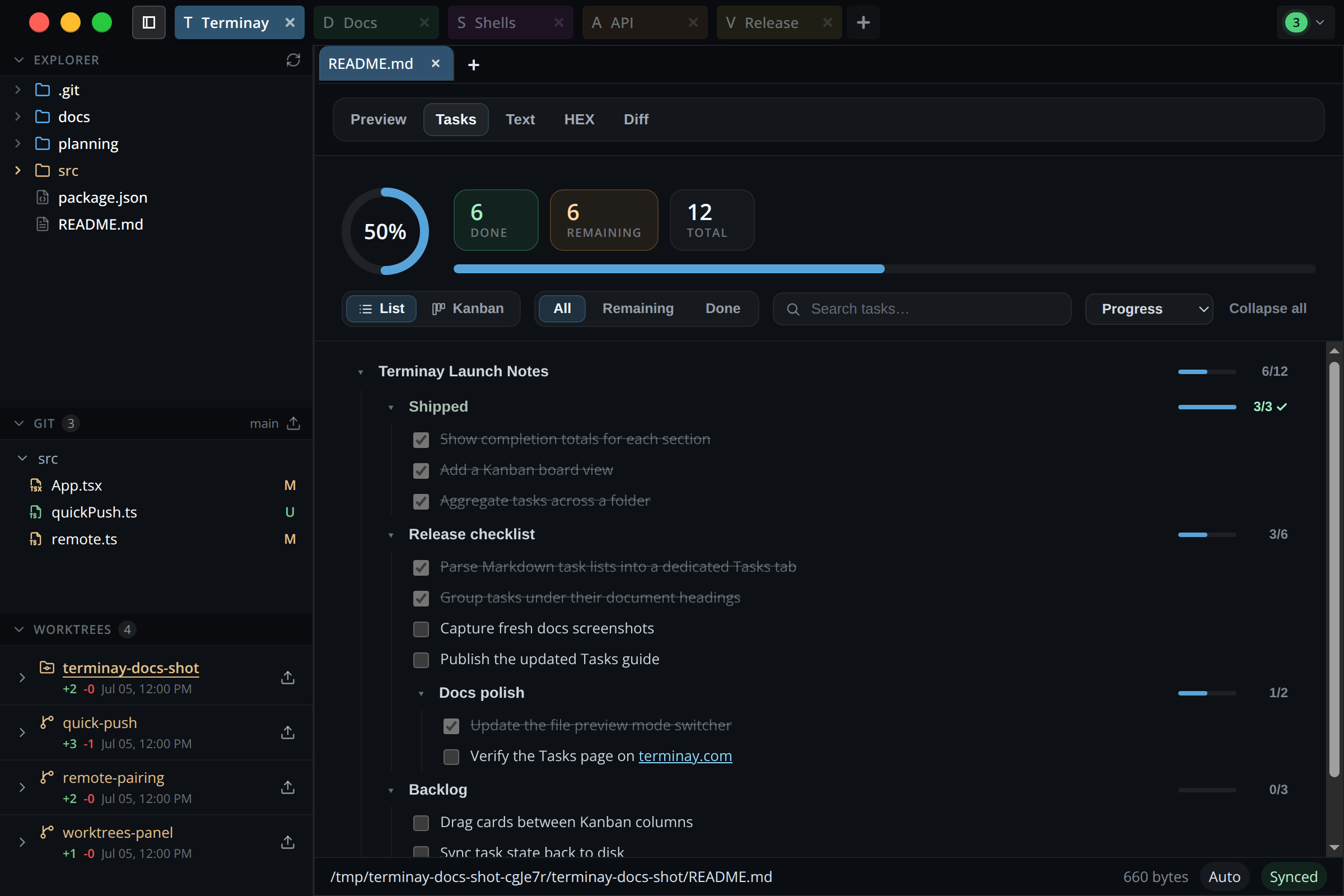
Terminay reads the checkboxes you already keep in Markdown and turns them into a live progress view — a headline completion ring, heading groups, a Kanban board, and filters. Open it for a single file, or aggregate every checklist in a folder into one dashboard, all beside your terminals.
Open The Tasks View
- For a file: open any Markdown file (
.md,.markdown,.mdown,.mkd) and switch the view mode tab to Tasks. - For a folder: open a folder tab and choose the Tasks view to aggregate every checklist found beneath it.
Nothing to configure — if a document contains task checkboxes, the Tasks view fills in. A file with no checkboxes simply prompts you to add one.
How Tasks Are Detected
Terminay parses standard GitHub-style Markdown task lists. Both completed and open items are recognized, and the surrounding structure of the document is preserved.
- Checkboxes written as
- [ ] todoor- [x] done(upper or lower caseX). - Any list marker works:
-,*,+, and numbered items such as1.or1). - Indented checkboxes become nested sub-tasks.
- Markdown headings (
#through######) become collapsible task groups, and subheadings nest inside their parent. - Checkboxes inside fenced code blocks are ignored, so examples in your docs do not become tasks.
Progress At A Glance
The header summarizes the whole document: a progress ring shows the completion percentage, and tiles count
done, remaining, and total. Every heading group carries its own
progress bar and completed / total badge, so you can see which sections are lagging without scrolling.
When everything is checked off, a celebratory callout confirms the file or folder is complete.
List And Kanban Views
Switch between two layouts from the toolbar:
- List keeps tasks in document order, grouped under their headings. Collapse a section to focus, or use Collapse all / Expand all to fold the whole outline at once.
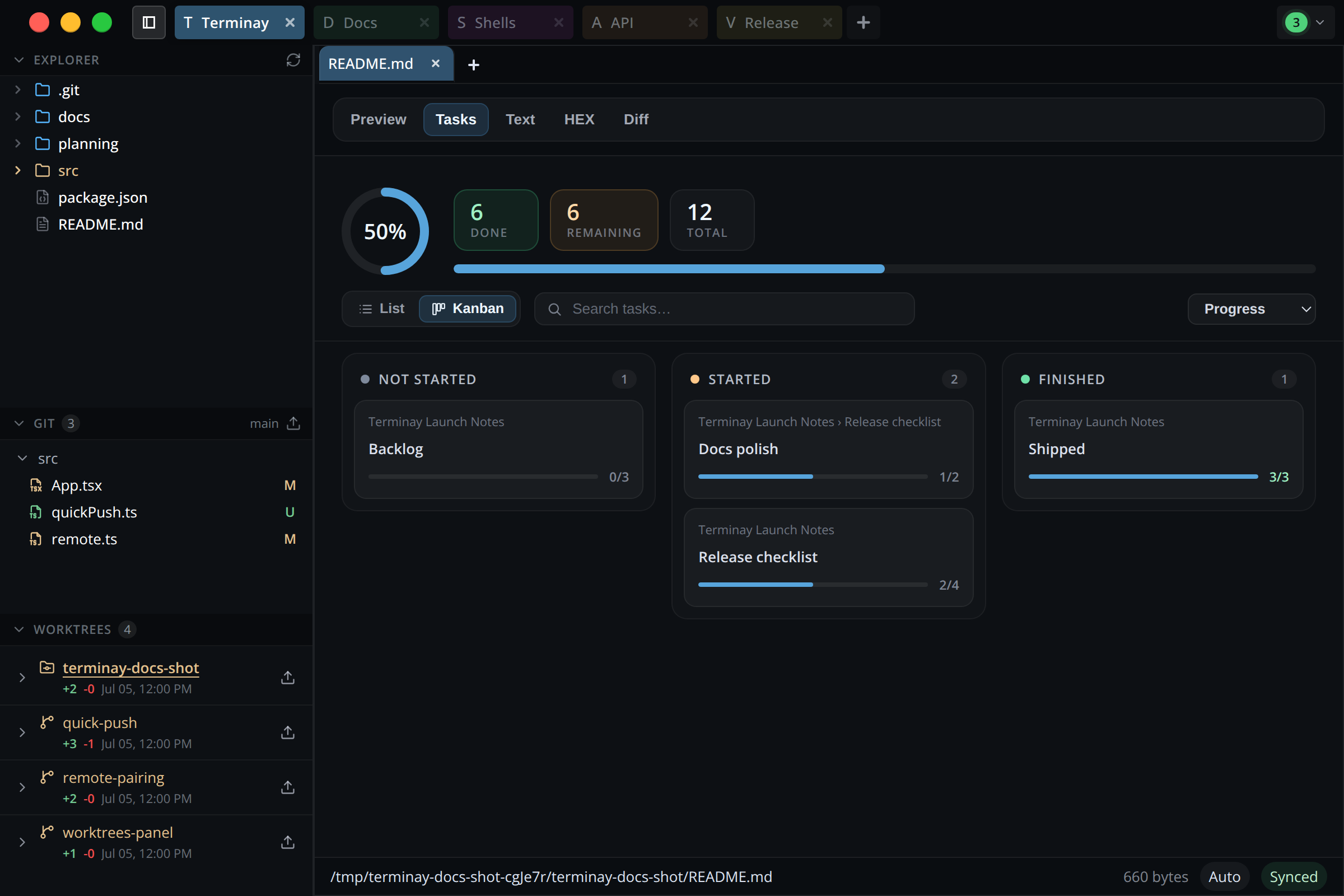
- Kanban turns each heading group into a card and sorts them into Not Started, Started, and Finished columns based on how many of the group's tasks are checked.
A Sort dropdown orders task groups — and Kanban cards — by Progress or Name, applied recursively through nested sections so the whole outline reorders at once.
Filter And Search
In List view, filter by All, Remaining, or Done to narrow the checklist. The search box matches task text live and temporarily expands every group so matches are never hidden inside a collapsed section.
Git Diff Awareness
When a file is tracked in Git, Terminay compares your working tree against the last commit and highlights tasks you
have completed since then. A +N in diff chip appears next to the totals, the affected rows are marked,
and a callout summarizes how many tasks you have ticked off in your uncommitted changes — handy for writing a commit
message or a standup update straight from your checklist.
Folder Tasks: Aggregate Across A Project
Choosing the Tasks view on a folder tab recursively scans for Markdown files and rolls every checklist into a single dashboard. It is the fastest way to see how a release, a migration, or a set of handoff docs is tracking across many files at once.

- Each file becomes its own group with a completion percentage and progress badge; fully finished files are marked Done.
- The header totals done and remaining across every file, with a files complete tile showing how many files are fully checked off.
- Double-click a file group, a Kanban card, or a single task to open that file directly in its own Tasks tab.
- In Kanban view, toggle Group by file to give each document its own board, or leave it off to triage every group together.
- Terminay watches the folder continuously — a live Up to date / Refreshing… status shows the scan state, and checking a box in any file updates the totals automatically.
Ignored Folders
Folder scans skip noisy build and dependency directories by default — including .git, node_modules,
dist, build, out, coverage, target, vendor,
and common cache and virtual-environment folders. Adjust the ignore list under
Settings → Files if your project keeps tasks somewhere that is excluded, or needs to skip more.