Notifications
Terminay tells you when a terminal needs you: an agent has finished or is waiting, a command has ended, or a script has sent a message. You see it in the workspace, on the app's icon, and as a banner on your phone. Deal with it on one device and it clears on all of them.
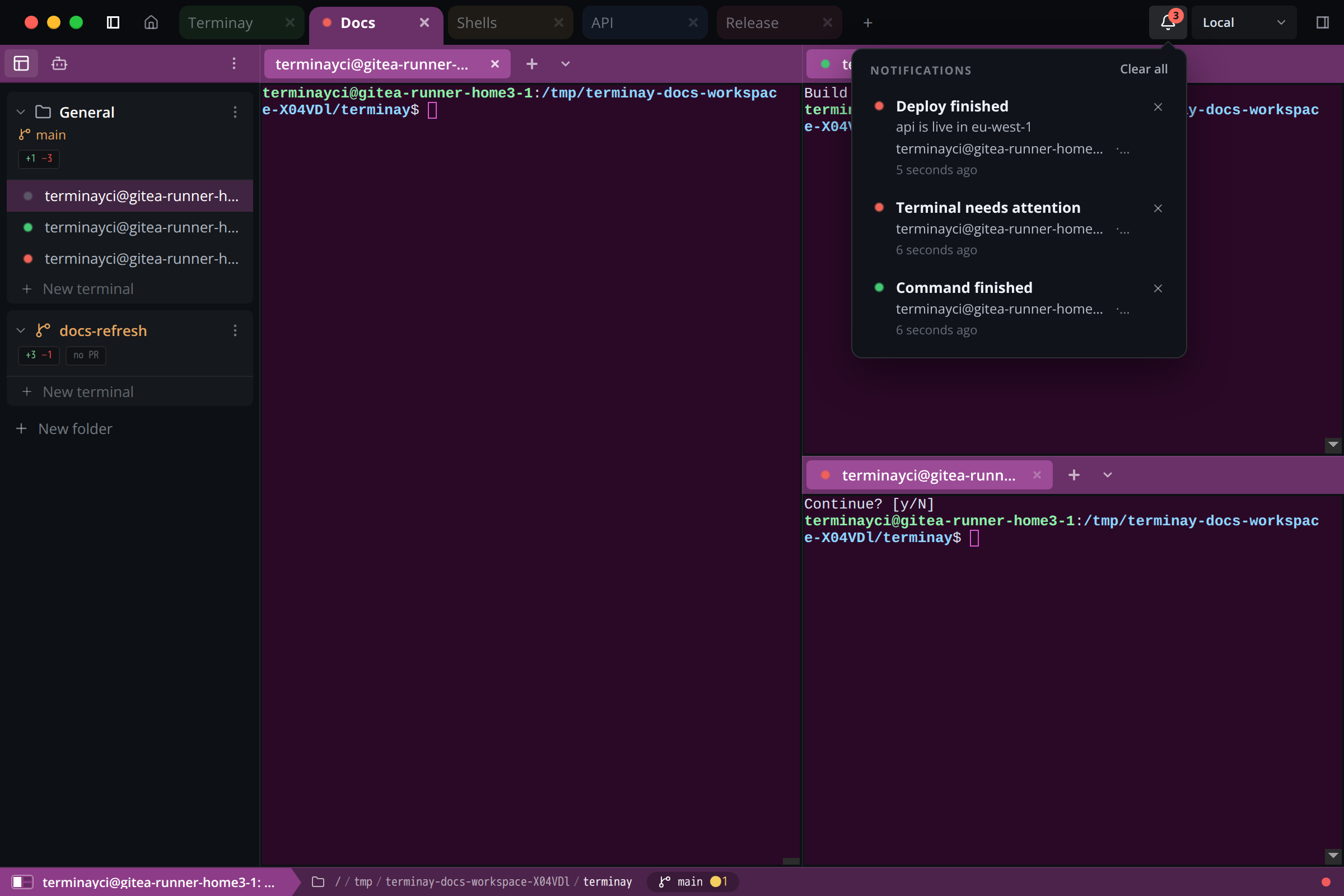
What Raises A Notification
| Notification | When |
|---|---|
| Agent finished | An agent ends its turn. |
| Agent is waiting for you | An agent asks a question or needs approval. |
| Agent is blocked | An agent cannot continue. |
| Command finished | A command you ran in a plain shell ends. |
| Terminal needs attention | A program rings the terminal bell or sends a terminal notification. |
| A message | An agent or a script sends one with its own title and text. |
A terminal that is only working is not a notification. Each one names the terminal it came from and that terminal's project.
The Five-Second Wait
A notification is shown about five seconds after it is raised. If you click or type in that terminal within those five seconds, it is dropped and nothing is shown anywhere. This keeps a banner from reaching your phone for something you were already dealing with.
Where You See It
- The terminal's tab shows an indicator: red for attention, green for finished.
- The project's tab shows a dot while any of its terminals has one.
- The bell in the header shows how many there are. Click it for the list, newest first, with what needs you at the top.
- The app's icon carries the same number as a badge.
- Your phone shows a banner and a badge on the Home Screen icon, once you turn that on.
Click a notification in the list to go to its terminal. The tab indicators can be turned off under Settings > Appearance > Tab Indicators.
Clearing
A notification stays until you do one of these in its terminal:
- Click the terminal's tab.
- Click into the terminal.
- Type in it.
- Move to it with a terminal navigation shortcut.
- Dismiss it from the list, or choose Clear all.
Nothing else clears it. Moving the mouse over a terminal does not, and neither does coming back to the Terminay window or switching project, even when focus lands in that terminal.
An agent's notification, and a message that was sent, are always shown, including for the terminal you are sitting in. A plain shell is quieter: while Terminay is the focused window and you are in that terminal, its own finished command or bell is treated as seen. Switch to another application and it notifies you.
Across Your Devices
Notifications are kept by the Terminay Server, not by the window you happen to have open. The desktop app, a browser tab, and your phone all show the same list from the same server.
- Raised once, shown everywhere: every device connected to the server shows the notification, and your phone gets a banner.
- Cleared once, cleared everywhere: click into the terminal on your desktop and the banner leaves your phone and its badge goes down, with no new banner to tell you so.
- No banner for what you can already see: a device that has that server open and on screen is not sent a banner. If you close it before dealing with the notification, the banner follows.
On Your Phone
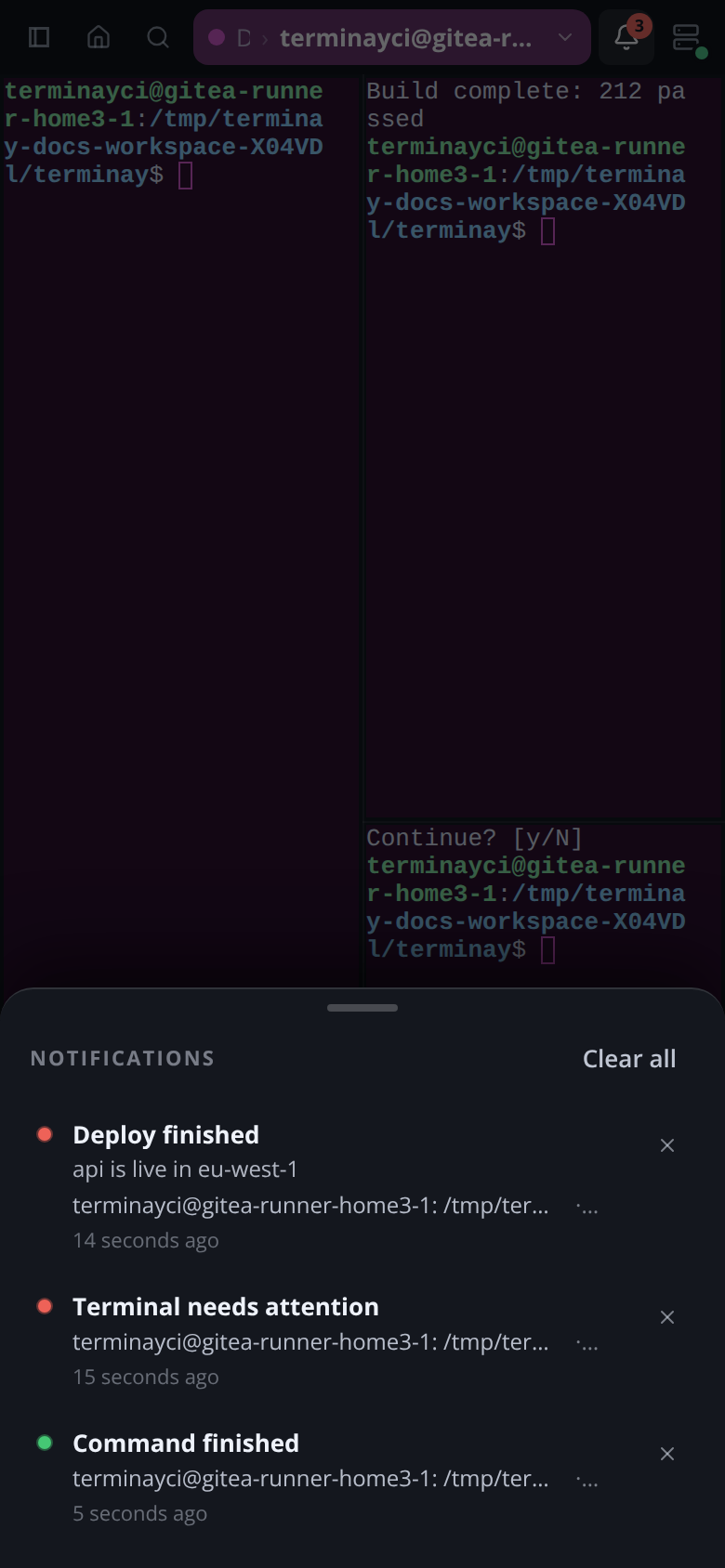
On a phone the bell is at the top right, with the same count. Tap it and the list slides up from the bottom of the screen, showing the same notifications as the desktop. Tap one to go to its terminal, which clears it, tap its × to dismiss it without leaving where you are, or choose Clear all. The terminal switcher also marks each terminal with its indicator.
Banners reach a phone, tablet, or another computer through the Terminay web app at app.terminay.com, the same app you use for remote access.
- Pair the device with your server, as described in Remote Access.
- On an iPhone or iPad, add the app to your Home Screen first: in Safari choose Share, then Add to Home Screen, and open it from there. Apple delivers notifications only to an installed web app.
- In the list of servers, find Notifications and choose Turn on, then allow notifications when the device asks.
- Choose Send test notification to check that a banner appears.
The Notifications control always says where things stand:
| Status | Meaning |
|---|---|
| Off | You have not been asked yet. Choose Turn on. |
| On | This device shows a banner when a server needs you. |
| Blocked | Notifications are blocked for Terminay in the device's own settings. Allow them there, then reopen the app. |
| Needs the installed app | On an iPhone or iPad, the app is open in a browser tab. Add it to your Home Screen. |
| Not supported | This browser cannot receive notifications. |
| Could not be set up | Notifications are allowed but the device could not be registered. The reason is shown. Choose Try again. |
More Than One Server
One device can be paired with several servers, and each can be switched on or off for notifications separately.
- A banner is titled with your own name for the server it came from, then says what happened and in which terminal and project.
- Each server in the list shows its own count.
- The Home Screen badge is the total across all of them.
- Tap a banner to open that server at the terminal it names.
What The Hosted Service Can See
A banner has to travel through app.terminay.com and your device maker's push service to reach a phone that has the app closed. Neither can read it.
- Your server encrypts every push with a key that only it and that one device hold. The key is made on the device when you turn notifications on and is handed to the server over your paired connection.
- Every push is the same size, so its length says nothing about what is in it.
- The hosted service stores no account, no device identity, and no terminal or project names. It holds only what it needs to pass a sealed push to the right device.
- Each server has its own key for each device. One server cannot show a banner in another server's name, and a push that does not open with the right key is ignored.
Send One From An Agent Or A Script
With Terminay MCP installed, an agent can notify you in its own words, for example when a long job ends. Ask for it plainly: "notify me when the migration is done."
| Tool | Parameters | Does |
|---|---|---|
send_notification | body, optional title, optional notification | Adds a notification to the terminal the agent is running in and returns its handle. With the handle of one it sent, replaces that notification's title and text in place. |
dismiss_notification | notification | Removes one notification the terminal sent, by handle. |
A body is at most 280 characters and a title at most 80. A terminal holds up to eight notifications it sent. Both tools act only on the terminal they are called from: they cannot name another terminal, and they cannot change a notification that came from an agent's status or a command.
A script needs no agent. Every terminal Terminay starts has TERMINAY_CONTROL_SOCKET and TERMINAY_CONTROL_TOKEN set, as described in App Windows. Save this as notify and make it executable:
#!/usr/bin/env node
// notify <title> <body>
const { connect } = require('node:net');

const [title, body] = process.argv.slice(2);
const socket = connect(process.env.TERMINAY_CONTROL_SOCKET);
socket.write(`${JSON.stringify({
  id: 'notify',
  token: process.env.TERMINAY_CONTROL_TOKEN,
  version: 1,
  op: 'send_notification',
  params: { title, body },
})}\n`);
socket.on('data', () => socket.end());
Then use it at the end of anything slow:
npm run build && npm test; notify "Build finished" "Exit code $?"Sending is covered by the Notifications policy in Settings > AI > Terminay MCP, which defaults to Always Allow.
Troubleshooting
- Nothing appeared: you clicked or typed in that terminal within five seconds, so it was dropped.
- No banner on the phone, but the list shows it: the phone had that server open and on screen, so it was not sent one. Check that Notifications says On and that the server's own switch is on.
- The test banner does not appear: the device is silencing it. Check Focus or Do Not Disturb, and the notification settings for Terminay on the device.
- Banners stopped on an iPhone: open the app once. It checks its registration every time it opens and renews it without asking again.
- Could not be set up: choose Try again. Safari creates a registration only from a tap.
- A plain command did not notify: you were in that terminal with Terminay focused. Switch to another application before it ends.