Automations
An automation is one trigger and one action. Terminay runs a command on a schedule, or reacts when an agent finishes, a terminal needs attention, or a device connects.
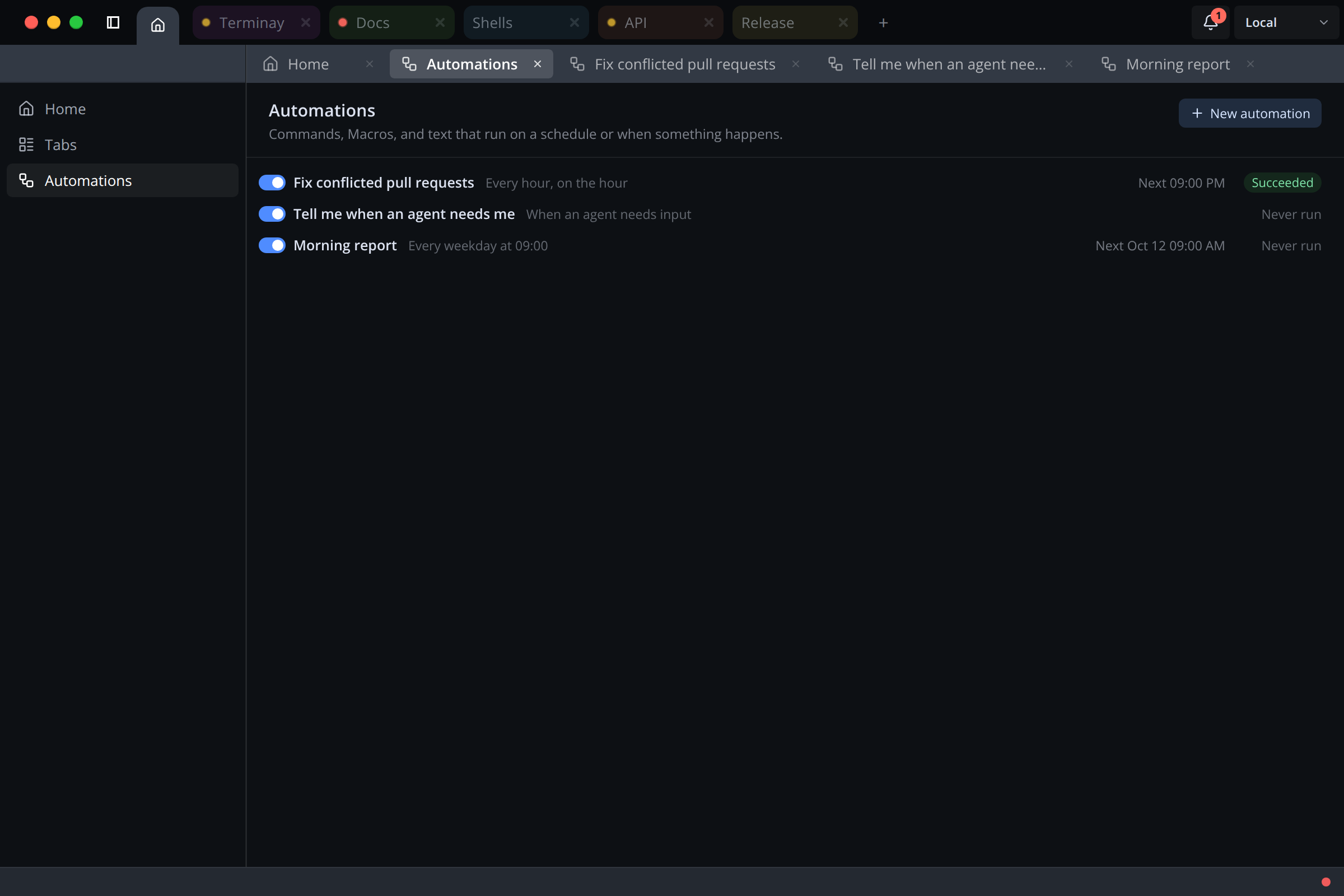
Where Automations Live
Open Home and choose Automations. Each row shows the automation's name, an enabled switch, its trigger in plain words, the next scheduled run, and how the last run ended.
Automations belong to the server, not to a project. Closing, renaming, or removing a project never changes them, and they keep firing with no project open and with no window or browser attached. They survive server restarts. With more than one server attached, pick the one you want with the Server selector.
Creating An Automation
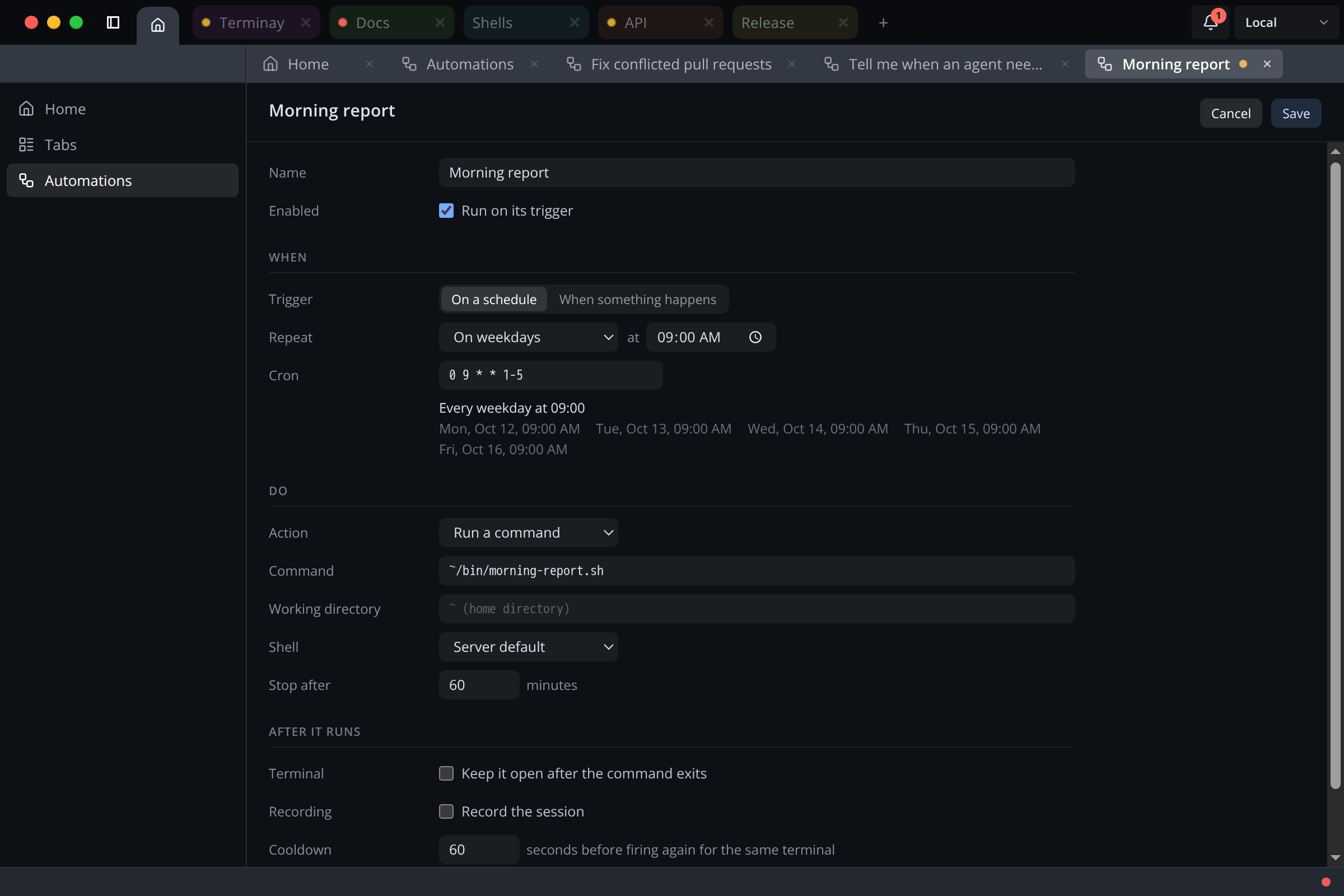
Choose New automation. An empty list also offers three starting points: Tell me when an agent needs me, Count finished agents, and Run a script every hour. Give the automation a name, fill in When, Do, and After it runs, then Save.
Clear Run on its trigger to save an automation disabled. A disabled automation never fires, but you can still run it by hand. Edits apply to runs that start afterward; a run already in progress finishes under the definition it started with.
Schedules
Choose On a schedule and pick a Repeat preset: Every minute, every N minutes, Every hour at a minute, Every day, On weekdays, or Every week on a day, each at a time you set. The preset fills in the Cron field, which you can also edit directly as a standard five-field expression.
Below the field, Terminay describes the schedule in plain words and lists the next five run times. Schedules use the server's time zone, and the editor says so when it differs from yours. An expression that cannot be parsed or never matches is refused.
A schedule fires at most once a minute. If the previous scheduled run is still going, that occurrence is skipped and logged as skipped.
Events
Choose When something happens and pick an Event. Events are watched across every project on the server:
- Agent finished, Agent needs input, and Agent blocked: an agent enters that state.
- Terminal needs attention, Command finished, and Terminal idle.
- Project opened and Project closed.
- Remote device connected.
An event fires when the state changes, not each time it is reported again, and it matches what the tabs and the Agents sidebar show. The terminal an automation launches to run its command never raises events, so an automation cannot trigger on its own runs.
Actions
- Run a command: runs a command line in a new terminal. Set the Working directory (your home folder by default), the Shell profile, and Stop after, the longest a run may take before it is stopped and logged as timed out. The default is 60 minutes. The run's outcome is the command's exit code.
- Run a Macro on the terminal: runs a saved macro in the terminal that raised the event. If the macro has fields, you fill them in when you save the automation.
- Write text into the terminal: types your text into the terminal that raised the event. Turn on Press Enter after writing to submit it. For example, write
continuewhenever an agent needs input.
The last two act on the terminal that raised the event, so they are only offered for agent and terminal events. If that terminal has closed by the time the action would start, the run is logged as skipped and nothing is written anywhere else.
Context For Commands
A command receives details about what triggered it as environment variables:
| Variable | Value |
|---|---|
TERMINAY_EVENT | The event, or schedule or manual. |
TERMINAY_FIRED_AT | When the trigger fired, as an ISO 8601 time. |
TERMINAY_AUTOMATION_ID, TERMINAY_AUTOMATION_NAME | The automation that is running. |
TERMINAY_TERMINAL_HANDLE, TERMINAY_TERMINAL_TITLE | The terminal that raised an agent or terminal event. |
TERMINAY_PROJECT_TITLE | That terminal's project, or the project that opened or closed. |
TERMINAY_AGENT_PROVIDER, TERMINAY_AGENT_STATE, TERMINAY_AGENT_OUTCOME | The agent, for agent events. |
TERMINAY_EXIT_CODE | The exit code, for Command finished. |
TERMINAY_DEVICE_NAME | The device, for Remote device connected. |
Only the variables that apply to the trigger are set. The context never includes secrets, tokens, or terminal output.
After It Runs
- Keep it open after the command exits: leaves the run's terminal open until you close it. Otherwise the terminal closes when the run ends, and the run history keeps the outcome and the end of the output.
- Record the session: saves each run as a recording, linked from the run. A recording failure does not fail the run.
- Cooldown: how long to wait before firing again for the same terminal. The default is 60 seconds. It stops an automation that writes into a terminal from re-triggering itself in a loop. Other terminals are unaffected.
- Keep history: remove finished runs after this many days. Leave it empty to keep them.
Runs And History
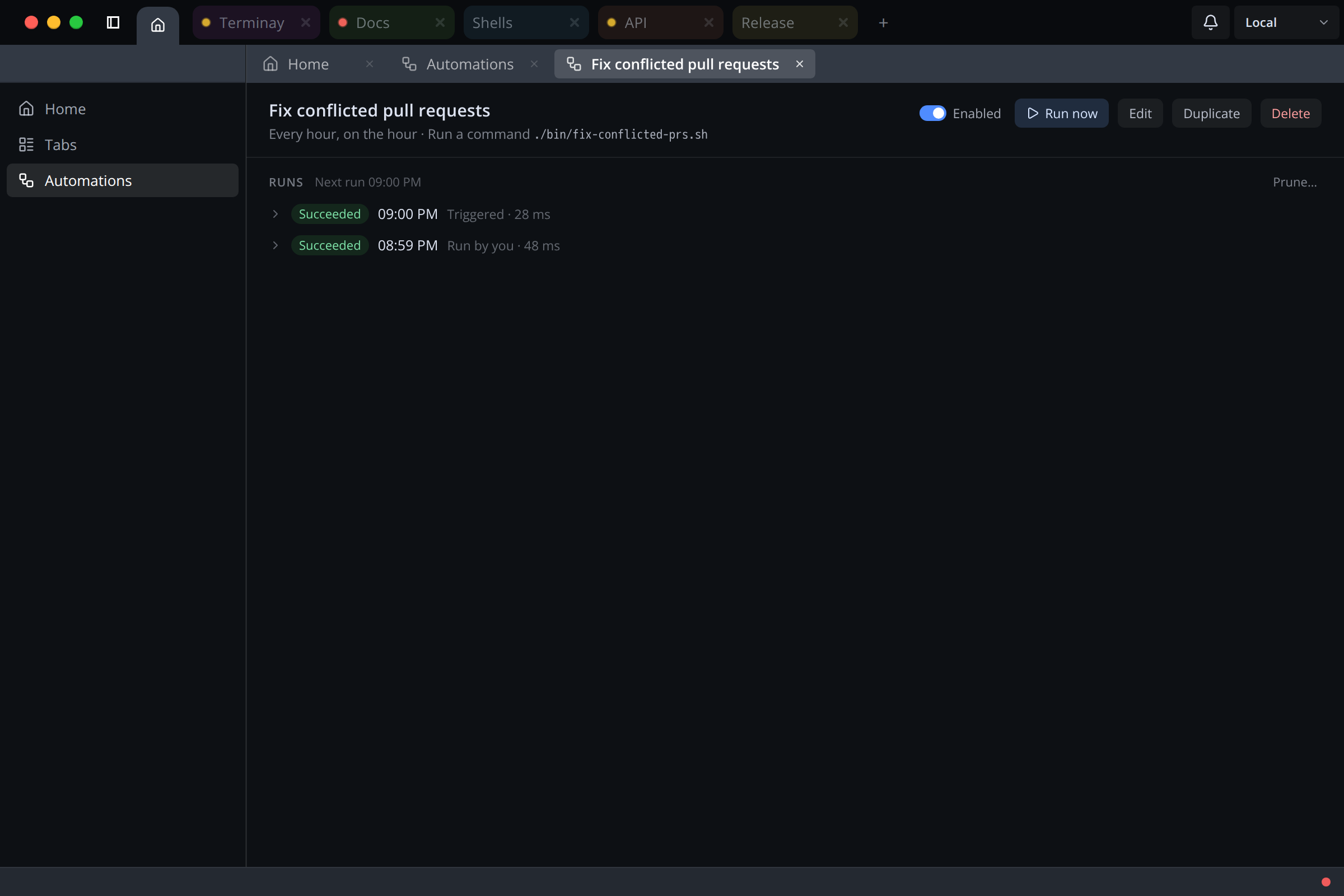
Click an automation to open it. From there you can enable or disable it, Run now, Edit, Duplicate, or Delete. Running an automation that acts on a terminal asks which terminal to use. Deleting asks for confirmation and does not stop runs already in progress.
Runs lists each run with its outcome: succeeded, failed with an exit code, timed out, stopped, or skipped with a reason. It also shows whether the run was started by its trigger, by you, or by an agent. Open a run to see its exit code, duration, and the last lines of its output, even after its terminal has closed.
Terminay keeps the latest 100 runs per automation. Use the delete button on a finished run to remove it, or Prune… to remove finished runs older than a number of days; 0 removes them all. The form shows how many runs will go before you confirm, and remembers your last choice. Runs in progress are never removed.
Automation Terminals
Runs happen in terminals that belong to no project. They are listed under Terminals in the Automations section, grouped by run, where you can open, type into, and close them like any other terminal. They never appear in project tabs or in the Tabs dashboard.
A command can open more terminals through Terminay MCP, for example a scheduled script that starts an agent. Those terminals appear under the run that opened them and stay open after the script exits.
Missed Schedules
Schedules that came due while the server was not running are not run late. The next time you open Terminay, a While Terminay was closed notice lists the automations that missed a run, with Run now beside each and Dismiss to clear it. The notice never runs anything on its own.
Automations And Agents
Agents can list, create, edit, run, and stop automations through Terminay MCP. By default, reading automations is allowed and changing them asks you first, with a prompt in the agent's terminal that shows exactly what would be created or changed.
Automations Or Macros
A macro is a sequence of steps you start yourself in the active terminal. An automation starts on its own, from a schedule or an event, and can run a macro as its action.