Home
Home is the view of your whole workspace: every project, every tab, every agent, and every automation, without opening each project in turn.
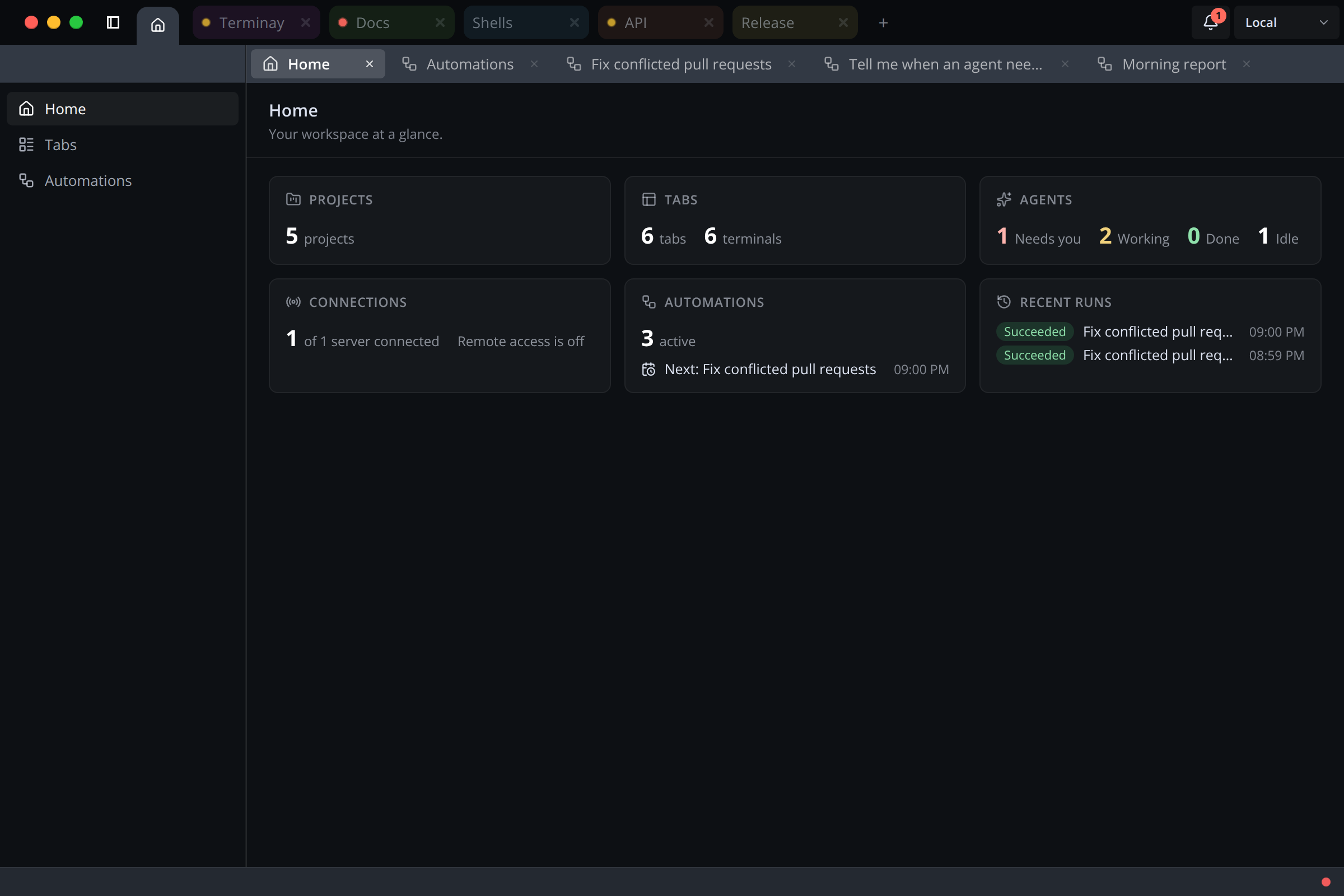
Opening Home
Click the house icon at the start of the project bar, press Cmd/Ctrl+0, or run Show Dashboard from the View menu or the Command Bar. Click any project tab to leave.
Home is not a project. It cannot be closed, renamed, or reordered, and it never appears in the project switcher. Opening it does not pause anything: every terminal keeps running while you look.
Each device remembers its own view. Your desktop can sit on Home while your phone shows a project in the same workspace, and each one returns to where it was after reconnecting.
Sections
The Home sidebar is a menu of three sections: Home, Tabs, and Automations. The sidebar button and its shortcut show and hide it, independently of every project's sidebar. Home reopens on the section you last used.
Overview
The Home section summarizes the workspace in live widgets:
- Projects: how many projects are open.
- Tabs: how many tabs are open, and how many of them are terminals.
- Agents: agents grouped as Needs you, Working, Done, and Idle.
- Connections: attached servers and the remote devices connected to them.
- Automations: active automations and the next scheduled run.
- Recent runs: the latest automation runs and how they ended.
Click a widget to go to its detail. Project, tab, and agent widgets open Tabs; automation widgets open Automations with that automation or run selected. A server that is offline is shown as unavailable rather than counted as zero.
Tabs
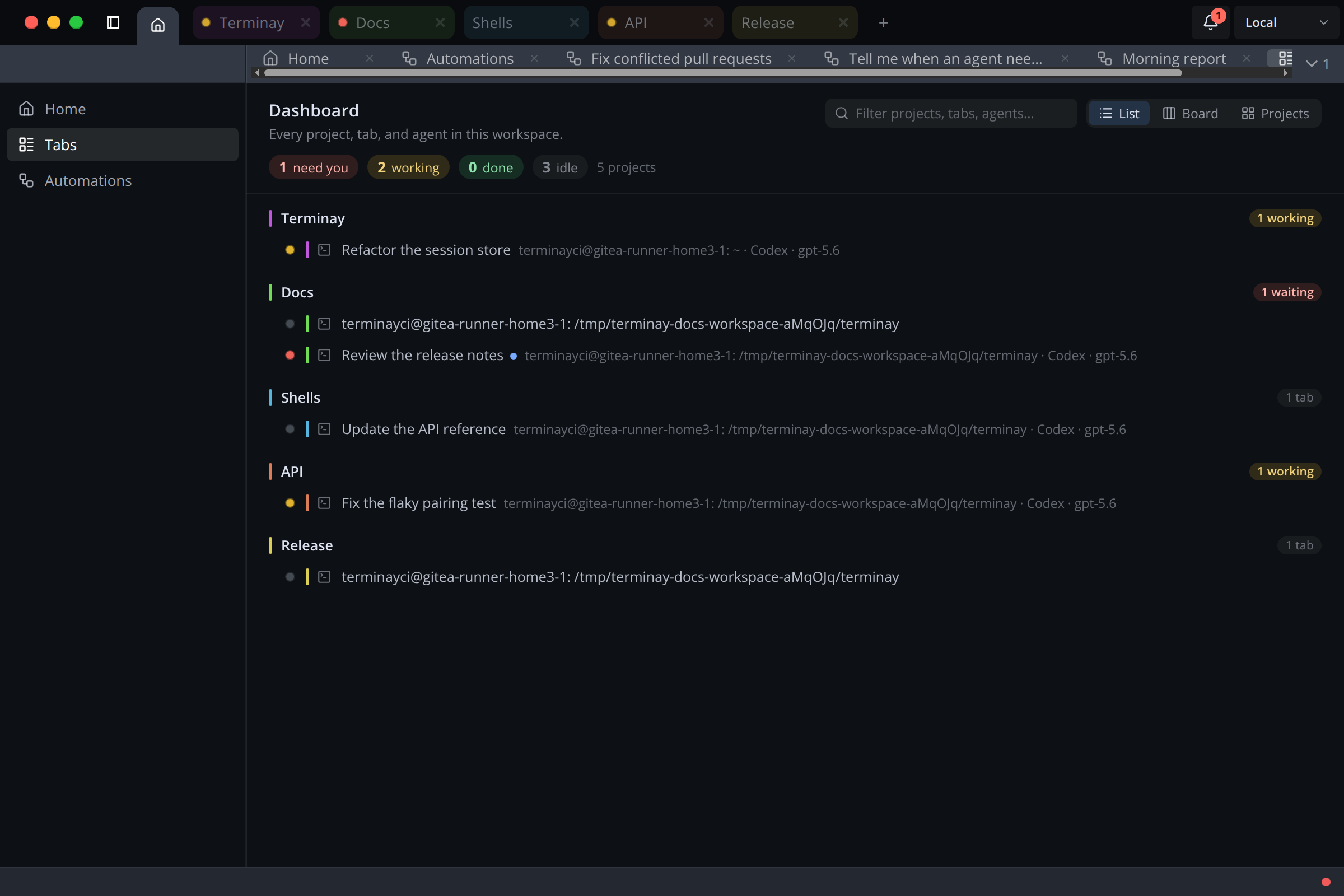
Tabs is the dashboard: every project and every tab in it, including the idle ones. The chips under the heading count what needs you, what is working, what is done, and what is idle. Statuses match what the terminal tabs and the Agents sidebar show.
Choose a view with the switcher in the header:
- List: one line per project, followed by one line per tab. This is the default.
- Board: cards sorted into Idle, Working, Needs you, and Done columns. A terminal running several agents gets one card per agent. Turn on Group by project to give each project its own lane.
- Projects: one card per project holding its tabs.
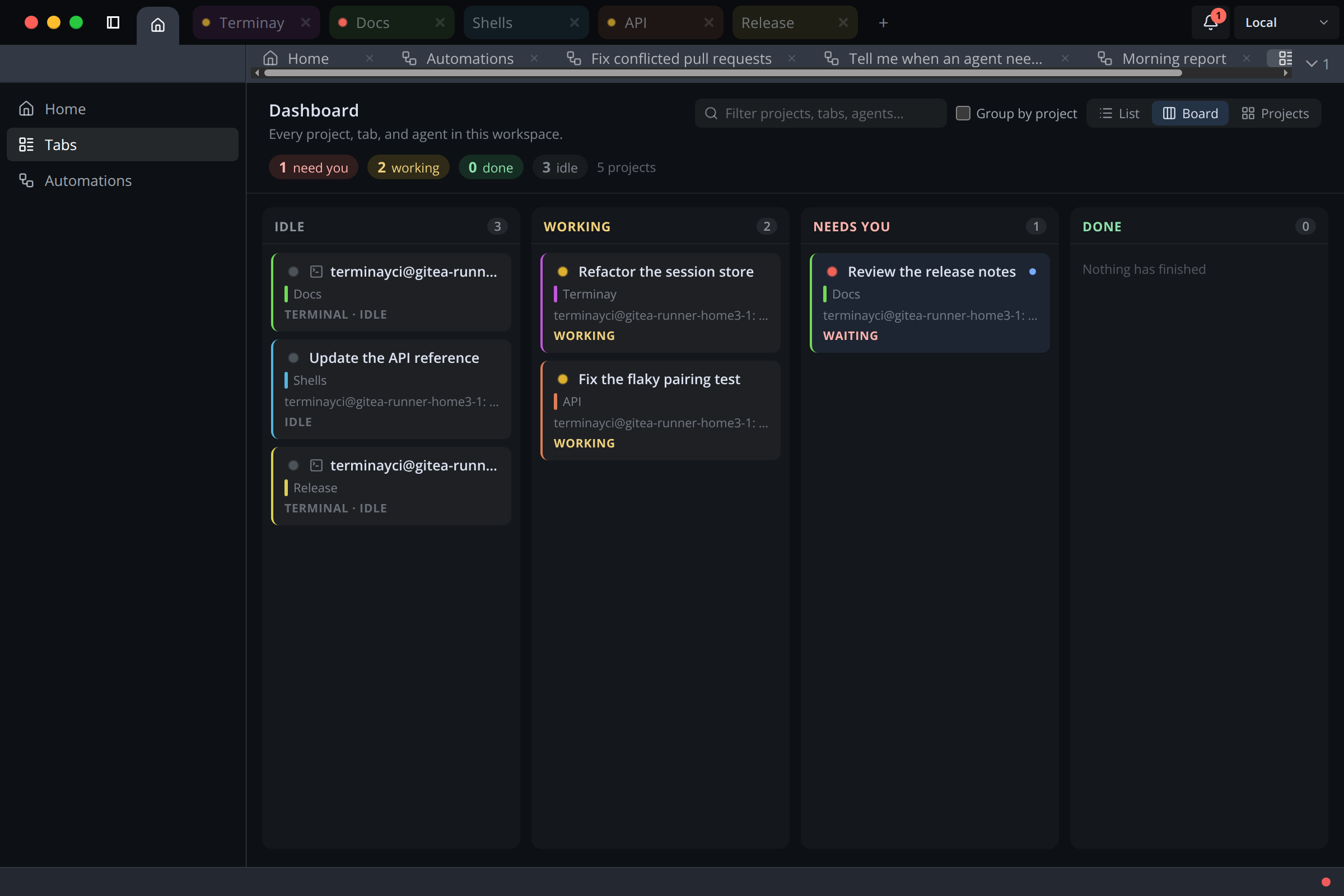
Click a project to open it, or click a tab or agent to open its project and focus that tab. Use Filter projects, tabs, agents… to narrow the dashboard by name.
Search
The search box across the top of Home finds sections, projects, tabs, agents, and automations by name. Press / to focus it, Enter to open the first result, and Esc to clear it. Choosing a result takes you there, the same as clicking it elsewhere in Home.
Automations
The Automations section is where you create rules that run on a schedule or when something happens in the workspace. See Automations.
More Than One Server
When a window has several servers attached, Home covers all of them. Each project names the server that owns it, counts include every attached server, and the Automations section gains a server selector.
With No Projects Open
Closing the last project in the main window leaves the window open on Home. Create a project from there and Terminay opens it in the server's default project folder. A popped-out window still closes with its last project.