App Windows
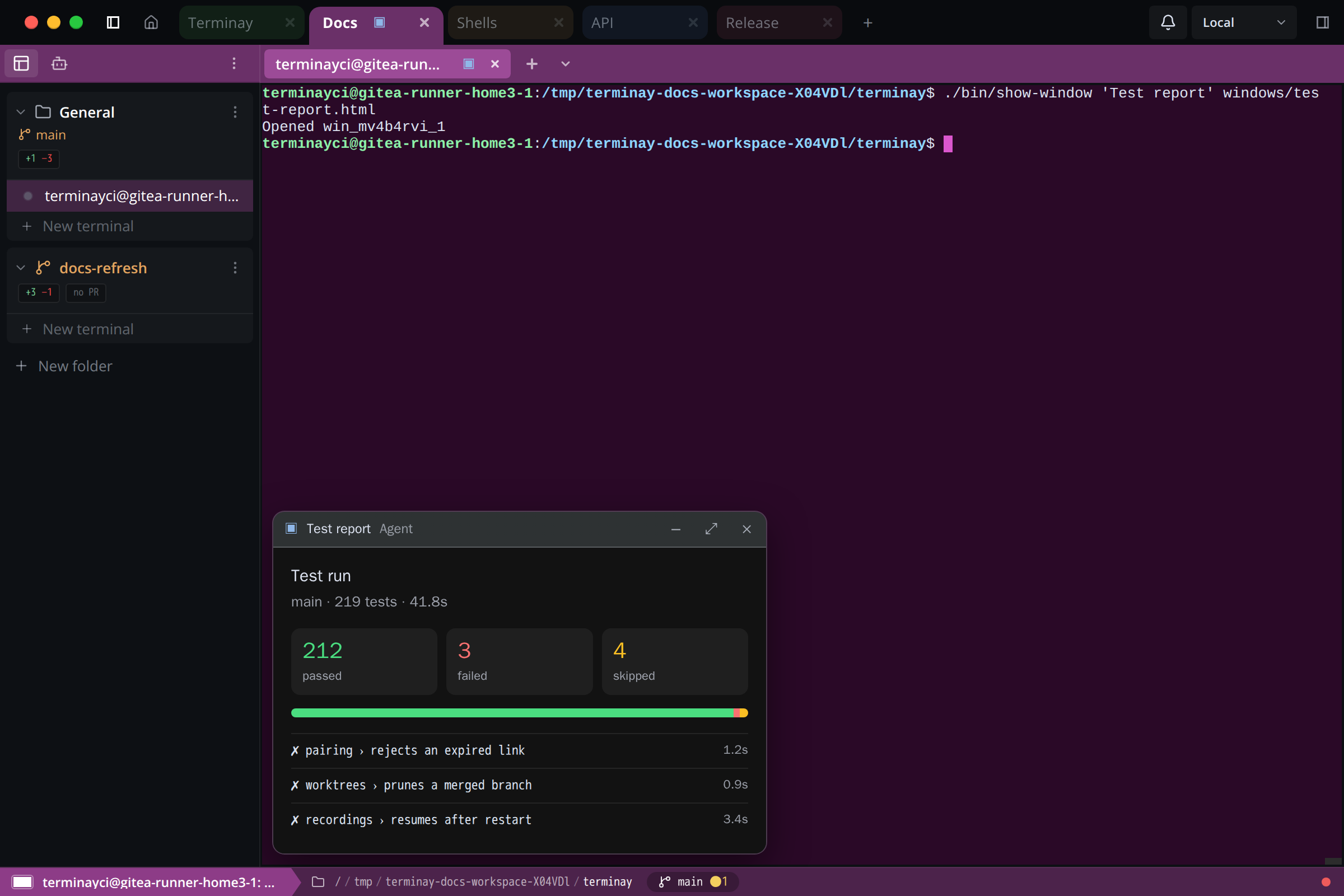
A terminal can only show text. An app window lets an agent, or any script, show a small interactive HTML page inside the terminal it is running in: a chart, a test report, a form, a preview. The window floats over the pane, can send the user's choice back to the agent, and runs in a sandbox.
How A Window Behaves
A window belongs to the terminal that opened it. It appears in that terminal's pane and nowhere else, and it ends when you close it, when the agent closes it, or when the terminal exits.
- Placement: a new window opens at the bottom left of the pane, up to 440 pixels wide and as tall as its content, capped at 60% of the pane. Taller content scrolls inside the window. On a narrow pane, such as a phone, it is a sheet across the bottom edge.
- Title bar: shows the window's title and where it came from, with buttons to minimise it, make it fill the pane, and close it.
- Move and resize: drag the title bar to move a window, and drag any edge or corner to resize it. It stays inside its pane and never changes the terminal's size.
- One open at a time: each terminal shows one open window. Opening or restoring another minimises the rest.
- Minimised tabs: a minimised window becomes a tab in a rail along the bottom of the pane. The terminal ends above the rail, so no output is covered. Click a tab to restore its window, or use the tab's close button.
- Badges: a terminal tab shows a window badge while its terminal has windows, and so does its project tab. The badge pulses when a window arrives in a terminal you are not looking at.
- Limits: a terminal holds up to eight windows. Windows are not kept across a server restart.
Switching terminal, project, or layout does not reload a window. Whatever you typed or selected in it is still there when you come back.
Ask An Agent For One
Install Terminay MCP for your agent, start the agent inside a Terminay terminal, and ask in plain words:
- "Show me the test results as a window."
- "Give me a form to pick the service and region to deploy."
- "Draw a chart of bundle size over the last ten commits."
The agent writes the HTML itself and calls one of three tools. Each acts only on the terminal the agent is running in; none of them can name another terminal.
| Tool | Parameters | Does |
|---|---|---|
show_window | title, html, optional window | Opens a window and returns its handle. With the handle of a window it opened, replaces that window's title and content in place and restores it. |
close_window | window | Closes one window by handle. |
list_windows | none | Lists the terminal's windows with handle, title, source, and whether each is open or minimised. |
A title is at most 80 characters and a document at most 512 KiB. A handle such as win_muvp9b2c_1 is valid only in the terminal that owns the window.
Writing The HTML
The document is a complete HTML page. Static HTML needs no script at all: Terminay sizes the window to the content and gives the page readable defaults.
<!doctype html>
<h1>Hello world</h1>
<p>This window was written by the agent.</p>
Inline <script> and <style> work, and the page may load scripts, styles, images, fonts, and media from, and fetch, any https origin. Terminay sets its theme on the page as CSS variables, including --color-text-primary, --color-background-primary, and --font-sans, so a window can match the workspace. Give each a fallback.
<!doctype html>
<style>
  .card {
    padding: 12px;
    border-radius: 8px;
    border: 1px solid color-mix(in srgb, var(--color-text-primary, #e6e6e6) 16%, transparent);
  }
  .muted { color: var(--color-text-secondary, #9aa0a6); }
</style>
<div class="card">
  <strong>Build finished</strong>
  <p class="muted">212 passed, 3 failed</p>
</div>
<script src="https://cdn.jsdelivr.net/npm/chart.js"></script>
The page runs sandboxed, so a few things are different from an ordinary web page:
- It has no access to the terminal, the filesystem, cookies, or Terminay itself.
- It cannot keep data between runs. Put everything it needs in the document.
- It cannot navigate itself, open windows, start downloads, or call
document.writeafter it has loaded. A window that tries is stopped and says why. - A link to
#idscrolls. A link to a web page opens in your browser and leaves the window as it was. - It cannot take the keyboard. Keys go to the terminal until you click or tab into the window.
Talking Back To The Agent
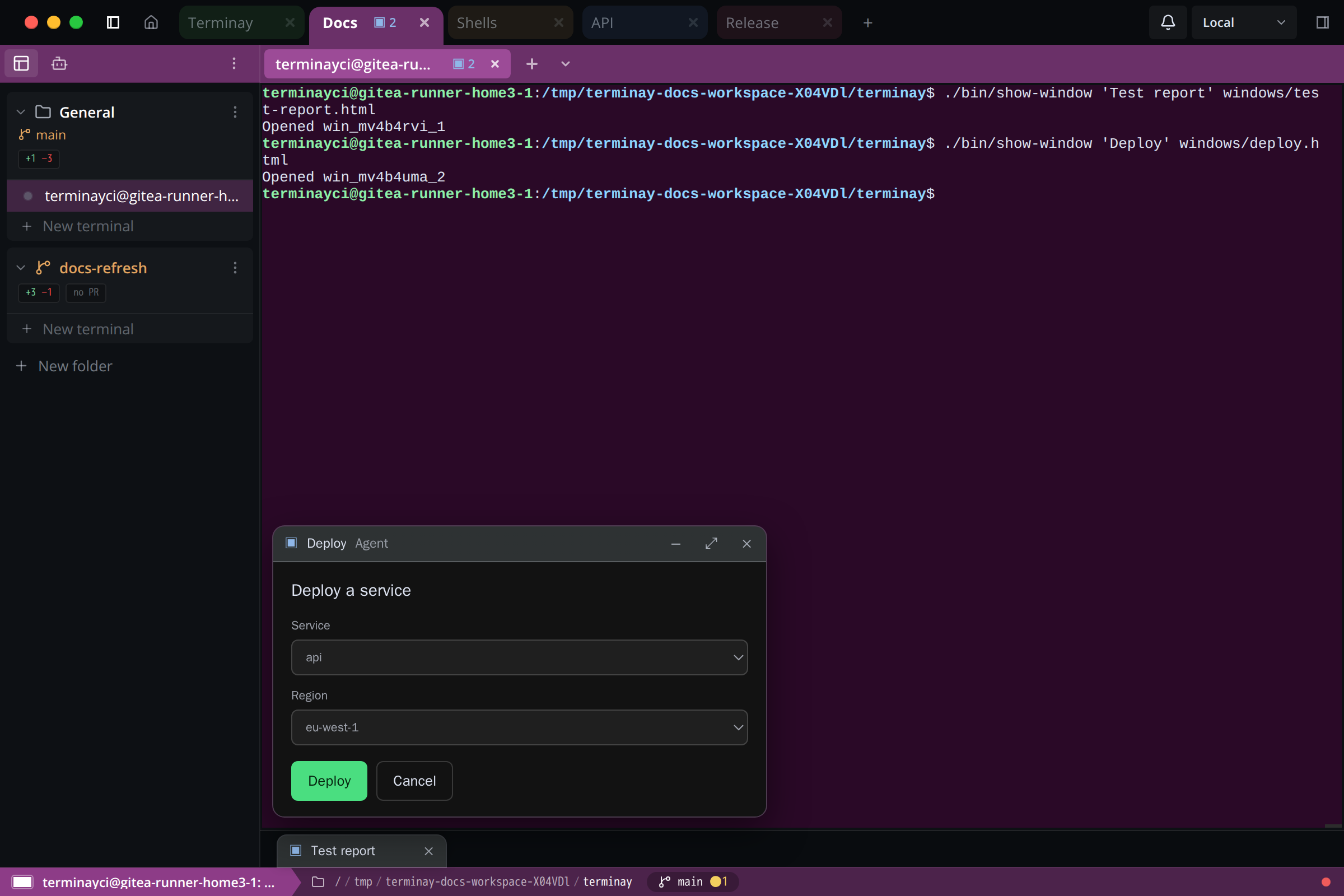
Every agent-authored window gets a small window.terminay object. It is how a button in the window reaches the agent.
| Call | Does |
|---|---|
window.terminay.sendMessage(text) | Types the text into the window's terminal and submits it, as though you had typed it to the agent. The window then minimises so you can see the terminal. |
window.terminay.updateContext(text) | Quietly attaches the text to the agent's next tool result, labelled with the window's title. Nothing is typed. A later update replaces one that has not been delivered yet. |
window.terminay.openLink(url) | Opens an http or https link in your browser. |
window.terminay.close() | Closes the window. |
<!doctype html>
<h1>Deploy a service</h1>
<label>Service
  <select id="service"><option>api</option><option>web</option><option>worker</option></select>
</label>
<label>Region
  <select id="region"><option>eu-west-1</option><option>us-east-1</option></select>
</label>
<button id="go">Deploy</button>
<button id="cancel">Cancel</button>

<script>
  const value = (id) => document.getElementById(id).value;

  // Typed into the terminal as the user's next message, then the window minimises.
  document.getElementById('go').onclick = () =>
    window.terminay.sendMessage('Deploy ' + value('service') + ' to ' + value('region'));

  document.getElementById('cancel').onclick = () => window.terminay.close();

  // Not typed anywhere: attached to the agent's next tool result.
  document.getElementById('region').onchange = () =>
    window.terminay.updateContext('The user is looking at region ' + value('region'));
</script>
These rules keep a window from acting on its own:
sendMessageandopenLinkwork only as the result of a click, tap, or key press in the window. A call the page makes by itself, such as while it loads, is refused.sendMessageworks once each time the window is open, because sending minimises it.- The text is plain text of at most 16 KiB, with no control characters other than tab and line feed.
- The message always goes to the terminal that owns the window, whichever terminal you are looking at.
Open A Window From A Script
You do not need an agent or an MCP client. Every terminal Terminay starts has two environment variables, and any process in that terminal can use them:
TERMINAY_CONTROL_SOCKET: the path of a local Unix socket, or a named pipe on Windows.TERMINAY_CONTROL_TOKEN: a token that identifies this one terminal.
A request is one line of JSON with a newline at the end, and the reply is one line of JSON. With jq and nc:
jq -nc --arg t "$TERMINAY_CONTROL_TOKEN" \
  --arg html '<!doctype html><h1>Hello from bash</h1>' \
  '{id:"w1",token:$t,version:1,op:"show_window",params:{title:"Hello",html:$html}}' \
  | nc -U "$TERMINAY_CONTROL_SOCKET"
The window opens in the terminal the command ran in, and the reply carries its handle:
{"id":"w1","ok":true,"result":{"window":"win_muvp9b2c_1","title":"Hello","state":"open","shown":"The window is open in the terminal you are running in. The user can see and use it."}}| Field | Value |
|---|---|
id | Any identifier you choose. The reply repeats it. |
token | The value of TERMINAY_CONTROL_TOKEN. |
version | 1 |
op | show_window, close_window, or list_windows. |
params | The same parameters as the tool of that name. Use {} for list_windows. |
A reply is either {"ok":true,"result":…} or {"ok":false,"error":{"code":…,"message":…}}. A script goes through the same permissions as an agent, so when App Windows is set to Ask Permission the reply arrives after you answer the prompt.
Update, List, And Close
Keep the handle to change a window later. Passing it back to show_window replaces the content in place.
Shell # terminay_window <op> <params-json>
terminay_window() {
jq -nc --arg t "$TERMINAY_CONTROL_TOKEN" --arg op "$1" --argjson params "$2" \
'{id:"sh",token:$t,version:1,op:$op,params:$params}' \
| nc -U "$TERMINAY_CONTROL_SOCKET"
}
# Show a file, and keep the handle.
params=$(jq -nc --arg title "Test report" --rawfile html report.html '{title:$title,html:$html}')
handle=$(terminay_window show_window "$params" | jq -r '.result.window')
# Replace its content in place: same window, no second one.
params=$(jq -nc --arg title "Test report" --rawfile html report.html --arg window "$handle" \
'{title:$title,html:$html,window:$window}')
terminay_window show_window "$params"
# List this terminal's windows, then close the one we opened.
terminay_window list_windows '{}'
terminay_window close_window "$(jq -nc --arg window "$handle" '{window:$window}')"
Show Progress From A Long Job
Because an update reuses the window, a script can keep one window current while it works. This uses the terminay_window function above:
Shell handle=""
show() {
params=$(jq -nc --arg html "<!doctype html><h1>$1</h1><p>$2</p>" --arg window "$handle" \
'{title:"Release",html:$html} + (if $window == "" then {} else {window:$window} end)')
handle=$(terminay_window show_window "$params" | jq -r '.result.window')
}
show "Building" "Compiling the desktop app"
npm run build
show "Testing" "Running the suite"
npm test && show "Done" "Ready to ship" || show "Failed" "See the terminal for output"
Without jq Or nc
Any language that can open a Unix socket works. This Node script needs nothing installed; save it as show-window, make it executable, and run show-window "Test report" report.html.
JavaScript #!/usr/bin/env node
// show-window <title> <file.html>
const { readFileSync } = require('node:fs');
const { connect } = require('node:net');
const [title, file] = process.argv.slice(2);
const socket = connect(process.env.TERMINAY_CONTROL_SOCKET);
socket.write(`${JSON.stringify({
id: 'show-window',
token: process.env.TERMINAY_CONTROL_TOKEN,
version: 1,
op: 'show_window',
params: { title, html: readFileSync(file, 'utf8') },
})}\n`);
let reply = '';
socket.on('data', (chunk) => {
reply += chunk;
if (!reply.includes('\n')) return;
const { ok, result, error } = JSON.parse(reply);
console.log(ok ? `Opened ${result.window}` : `${error.code}: ${error.message}`);
socket.end();
});
Treat the token like a password for that terminal: do not print it, log it, or pass it to another machine. It stops working when the terminal exits.
MCP Apps From Connected Servers
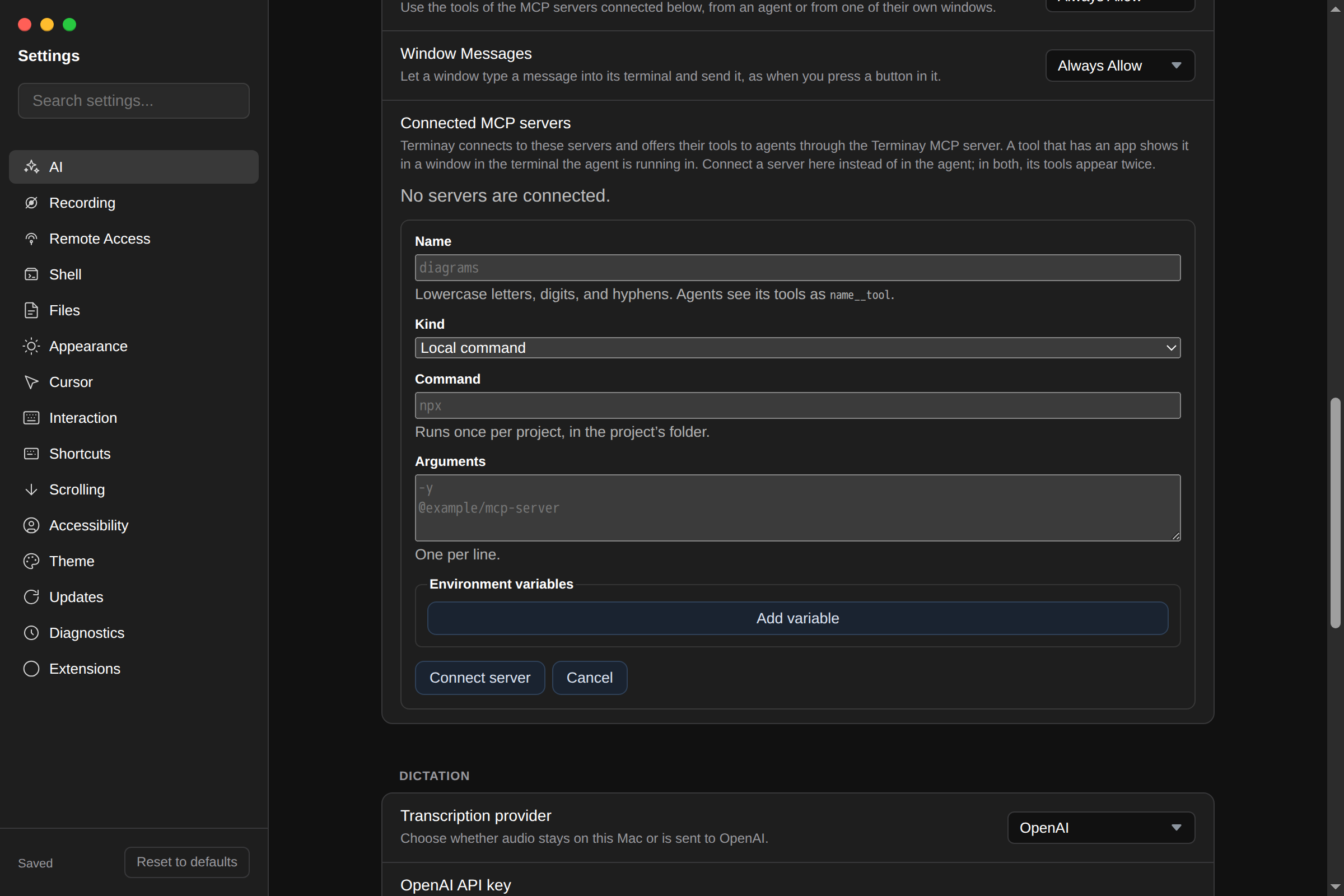
Some MCP servers ship their own interactive views, known as MCP Apps. Chat apps can show them; an agent CLI cannot, because a terminal has nowhere to put HTML. Terminay can. Add the server in Settings > AI > Connected MCP servers and Terminay connects to it as a client that supports views.
- An entry has a unique name of lowercase letters, digits, and hyphens, and either a command with arguments and environment variables for a local server, or an
httporhttpsURL with request headers for a remote one. - Its tools reach the agent through Terminay MCP, named
<entry>__<tool>. A server nameddiagramswith adrawtool appears asdiagrams__draw. - A tool with a view opens that view in a window in the calling terminal, titled with the tool's title, and the agent still receives the tool's result.
- The view can call tools of its own server only. It cannot call Terminay's tools or another entry's tools, and it may load only the origins its server declared.
- Status: each entry shows whether it is connected and how many tools it offers, or why it is not connected. A server that fails does not hide Terminay's own tools or another entry's.
A local server starts once per project, in the project's root folder, when a terminal of that project first needs its tools. A remote server is connected once per Terminay Server. Environment-variable and header values are kept in the server's vault and are never shown again after you save them. If you change an entry's command, arguments, or address, re-enter them: stored values are not carried to a new destination.
Terminay does not read or change the MCP servers configured in your agent CLI. The list in Settings is separate, so connect a server here instead of in the agent: connected in both, its tools appear twice.
Permissions
Three policies in Settings > AI > Terminay MCP cover windows. Each can be Ask Permission, Always Allow, or Never Allow, and all three default to Always Allow.
| Policy | Covers |
|---|---|
| App Windows | Showing, closing, and listing windows, and opening a view for a connected server's tool. |
| Connected Server Tools | Every tool of a connected MCP server, whether the agent or that server's own view calls it. |
| Window Messages | A window typing a message into its terminal with sendMessage. |
With Ask Permission, a prompt appears in the terminal's pane before anything happens. For a window it states the title; for a window message it states the window and the complete text that would be typed. If App Windows does not allow a view but Connected Server Tools allows the tool, the tool still runs and no window opens. Prompts work as described in Terminay MCP.
Browsers, Phones, And Shared Terminals
Windows work the same in the desktop app and in a browser, and are usable by touch on a phone. When more than one device is attached to a terminal, the window's page runs only on the device that holds control of that terminal. The others show its tab and badge; choosing the tab there offers the usual takeover. When control moves, the new device starts the page afresh from the same content, so anything the page had not reported is not carried over.
Security Model
- A window's page runs in an isolated origin with no access to Terminay's storage, cookies, workspace, or desktop APIs.
- A window can be reached only through the terminal that owns it. Another terminal, project, or server cannot list, change, or close it.
- The control socket is local to the machine. Nothing here makes it reachable over a network.
- A connected server never receives a Terminay token or the identity of the calling terminal.
- An agent-authored window may contact any
httpsorigin, so treat what an agent puts in a window as you would a web page it asked you to open.
Troubleshooting
- invalid_token: the script is not running in a terminal Terminay started, or the variables were not passed on. Check
echo $TERMINAY_CONTROL_SOCKETin the same shell. - bad_request, "html must be a non-empty string": the document was empty, often because the file path was wrong.
- not_found: the handle belongs to another terminal, or the window has already closed.
- limit_exceeded: the document is over 512 KiB, or the terminal already has eight windows. Close one first.
- permission_denied: App Windows is set to Never Allow.
- The command seems to hang: it may be waiting for approval. Answer the prompt in the terminal's pane.
- A button does nothing:
sendMessageneeds a click or key press, and works once each time the window is open. Restore the window to send again. - The window says it stopped: the page tried to navigate or rewrite itself. Use links and DOM updates instead.
- No windows at all: make sure Enable Terminay MCP server is on in Settings > AI.